Showing posts with label jangosmtp. Show all posts

Wednesday, June 18, 2014

James Explains: Upsell Through Transactional Email


There’s no better time to upsell than through an email confirmation.

Imagine this, a customer has just completed an order on your ecommerce site. Let’s say they've ordered 250 business cards. You have your automated messages set up in JangoSMTP, like a lot of our users do, so that your customers receive an order confirmation immediately following each transaction.

When would be a better time to offer that customer a discount and free shipping on an additional 250 business cards?...NOW


You could also offer related products like personalized stationary, promotional ink pens, or business card magnets. This customer is in the mood to buy, so take advantage of each opportunity.

They've already placed an order through your website, and entered their payment and shipping information. It would be unusually easy to add items to their order now. That's an opportunity no business can afford to ignore!  Make sure you incorporate upselling into your next campaign.

As always, I’m James, the most interesting animal in email marketing.  Keep it locked here for the latest and greatest!

Special thanks to JangoSMTP Account Executive, Erica Melzer, for helping me with this post!

Cheers,

James The Jangolope
Department of Awesome
JangoSMTP


About James
James the Jangolope is our JangoSMTP mascot. Each month, look for our new “James Explains” emails and blog posts on transactional email advice, trends, and quick tips. James will offer insight on how to improve your SMTP plan and how to use your JangoSMTP account to the fullest  
We want to hear from you. Have a topic you would like James to cover? Email us at marketing@us.jangomail.com with the subject line: James Explains. Follow James on Facebook

Wednesday, May 28, 2014

5 Things you didn’t know about JangoSMTP

Written by: Erica Melzer
Account Executive


Think you know everything about JangoSMTP?  Think again.

1.  We were the world’s first.


Did that hiring manager see your resume yet or is it time to give her a call? JangoSMTP was the first to make it possible for you find your answer to questions like that. While we weren't the first to offer transactional emails to the world, we were first to track those opens and clicks. This means that you can keep using your current email client such as Outlook, Thunderbird, or Gmail to send your messages and, using our relay, you can see how well they perform.


2.  Our support team is the fastest in the business. 


According to ZenDesk, our third-party ticketing system, we respond to support tickets within three hours on average. Seventy percent of our tickets this year have been answered within the first hour. These figures include tickets that come in overnight, on weekends, and on holidays. They all count. Compare that to the response time of others web applications in the industry; it takes them 20 hours on average to submit their first response. Those numbers speak for themselves, I think.


3.  We've got girl power on our side. 


Did you know that statistically speaking, successful tech start-ups employ twice as many women in senior roles than their less successful competitors?  (Dow Jones) According to Fortune Magazine, within the Fortune 100 tech companies, only four women fill CEO positions.  Women are consistently underrepresented in tech industries. This is NOT the case at JangoMail, where women represent 52.6% of our nerd-force. Jack and James may be boys, but JangoGirls provide tech support, develop our platform, and manage our marketing, customer service, and accounting departments. Even our President and COO is a woman.


4.  There’s a side to us you haven’t seen. 


JangoSMTP is all about transactional, but we do broadcast messages, too, at www.jangomail.com. JangoMail is an email marketing platform that gives users the tools you need to create, manage, send, and track email marketing campaigns. With JangoMail you can manage your lists and take advantage of powerful automation tools like autoresponders, and behavioral triggers. We support advanced personalization and dynamic content. The best part is, all JangoMail accounts can send transactional messages, too! If you’re interested in converting your JangoSMTP account and gaining access to the full range of JangoMail features, call 1-888-465-2646 ext.819 and speak with me, Erica Melzer.


5.  We’re not only the first and the fastest…


We’re also the best. JangoMail and JangoSMTP are consistantly rated highest among our peers.  Check out the JangoSMTP reviews over at GoogleApps where one user says that he:
"ENCOUNTERED SOME DIFFICULTIES DUE TO MY SOMEWHAT NON-STANDARD SERVER SET-UP, BUT I RECEIVED VERY PROFESSIONAL SERVICE, GOOD ANALYSIS THAT HELPED ME IDENTIFY THE PROBLEM, AND A SERIES OF AMAZINGLY QUICK RESPONSES."
Also check out our way above average ResellerRating’s reviews.


If you have any questions about the best ways to use your JangoSMTP account or if you’re interested in trying out JangoMail, give us a call at 1-888-465-2646 between 7 AM and 7 PM (US/EST) to talk to one of our knowledgeable sales and support reps.

Tuesday, April 8, 2014

Protect Your Fleet with JangoSMTP


By: Erica Melzer
Account Executive
As the mother of three young children, I am already losing sleep over the thought of Cooper, Chase, and Amelia driving real cars on actual roads. Still, their coming adolescent years are very real things that I will eventually have to face. Like it, or not.

It's a well-known statistic, at this point, that car crashes are the leading cause of teen death in the United States. What you may not know is that, according to Geico, one in five 16 year-old drivers will be involved in an accident during their first year on the road and most of these, as with all types of accidents, will be speed-related.

When the time comes, I plan to monitor what my children do with their cars using GPS tracking. There are several in-vehicle monitoring devices and programs like OpenGTS that will send an email to my husband and I when one of our kids exceeds the speed limit or travels outside of their approved radius or “geofence.” These devices can also record and send a kid's exact routes, stop times, speeds, and more. A few of the tracking systems can even send us a warning message if our teen driver's seatbelt is left unbuckled.

Fortunately, I don't really have to start worrying about this for another 10 years or so (like that's going to stop me.) If you have a teen driver on the road already, you can use JangoSMTP to send alerts like these to your email address or smartphone today. Click here and find out how OpenGTS and JangoSMTP can help you keep an eye on your teen driver.

There is also huge potential for the commercial use of similar devices and programs. Trucking companies and businesses in service-related industries can keep track of their trucks and vans, keep their drivers safe, and lower their insurance premiums by installing devices into each of their fleet vehicles. Whether you plan to track your vehicles at home or keep an eye on your own fleet, JangoSMTP can provide the relay server you need to make the whole thing work and keep everyone safe.

JangoSMTP can be used with any device or program that requires an SMTP server to relay messages. If you have questions about setting something like this up, call 888-465-2646 between 7 AM and 7 PM (US/EST) Monday – Friday, and talk to one of our knowledgeable Support Reps. That's right, our free trial accounts get phone support, too!


Monday, March 3, 2014

How Cold is Too Cold for Rover… and what’s it got to do with JangoSMTP?


By: Erica Melzer
Account Executive
Most of our customers aren't located in Dayton, Ohio. So, you may not been experiencing the record-breaking cold temperatures that we have this winter. Still, chances are, you do live in a region where it gets uncomfortably hot or cold at some point during the year. And, if not, lucky you.

The rest of us, especially those with pets, could certainly benefit from having a thermostat or sensor that would send us an email if the temperature in our house dropped below or rose above certain temperature thresholds. Nest thermostats that do exactly that and they use an SMTP server, just like ours, to send those messages.

Texas A&M University's Department of Veterinary Medicine says, “It is generally accepted that indoor pets are not acclimated to cold weather.” So, despite their wild origins and furry coats, most domesticated breeds (especially those with short hair) should never be kept in temperatures below 45°F.  Regarding warmer temperatures, the AKC said in a recent blog post that “...most dogs begin to show signs of overheating between 81-85°F.”

Photo courtesy of Bethan Hazell.

Find out if your thermostat is capable of alerting you to dramatic changes in temperature. If so, create a Free Trial Account. Then, all you need to do is adjust your thermostat's settings and tell it that JangoSMTP is your relay provider. Our free trial volume will be more than you'll ever need. This peace of mind will never cost you a dime.

If you have any questions about setting something like this up, call 888-465-2646 between 7 a.m. and 7 p.m. (US/EST) and talk to one of our knowledgeable Support Reps. That's right, our free trial accounts get phone support, too!

Thursday, February 20, 2014

Our New Mascot and Educational Series, “James Explains”

By: Melonie Mottice
Marketing Specialist

Introducing….James, the most interesting animal in transactional email.

“I don't always have SMTP questions, but when I do, James Explains.”

Meet James, our new JangoSMTP mascot. James the Jangolope is Jack, the JangoMail mascot's, eccentric cousin. Not only is he extremely good looking, but he is also knowledgeable about all things JangoSMTP.


Each month, look for our new “James Explains” emails and blog posts on transactional email advice, trends, and quick tips. James will offer insight on how to improve your SMTP plan and how to use your JangoSMTP account to the fullest.

Subscribe to James Explains.

What is a jangolope?
To start, a jackalope is a mythical creature known as a jackrabbit with antelope horns. Over time the jackalope continued to change into what we, at JangoSMTP and JangoMail, call the jangolope.

Long, long, long ago a curious jackrabbit stumbled upon an old computer. He grew tired of receiving and sending plain, ineffective emails. The jackrabbit thought long and hard. He knew there had to be a way to incorporate tracking capabilities into transactional messages. As his idea grew, so did his antlers.

Through the wild countryside of North America, the jackalope soon became known as the jangolope because of his savvy computer skills. James is a direct descendant of the original jangolope. Half jackrabbit, half antelope, 100% email professional.

We want to hear from you. 
Have a topic you would like James to cover? Email us at marketing@us.jangomail.com with the subject line: James Explains.

Tuesday, December 31, 2013

Happy New Year

By: Melonie Mottice
Marketing Specialist


Today is New Year's Eve, which means 2013 is almost over. It's also a good time to sit back and reflect on the year.

In 2013, JangoSMTP has continued to grow. We have a lot to celebrate as we look back at our many accomplishments.

Here is a list of our top five blog posts of the year:


JangoSMTP is getting better every day, and 2014 will be no different. Our team is not only bright, but driven to provide you with the best transactional email service out there.

Don't see what you need? Just ask. Contact us at: 1-855-709-4099, or submit a ticket at jangosmtp.com/support.We're always open to new ways to stay ahead.

Thank you for your business in 2013 and Happy New Year!


-The JangoSMTP Team

Monday, November 25, 2013

Hey Griswold, The Little Lights Aren't Twinkling

By: Melonie Mottice
Marketing Specialist


It's that time, Christmas time is here
Everybody knows there's not a better time of year
Hear that sleigh, Santa's on his way
Hip, Hip Hooray, for Christmas Vacation

It is that time of the year! Not only is watching National Lampoon’s Christmas Vacation a must, but so is decorating your home for the holidays. While the sound of “250 strands of lights, 100 individual bulbs per strand, for a grand total of 25,000 imported Italian twinkle lights,” might be overwhelming, a lot of us like to show our holiday spirit with outdoor Christmas lights, and JangoSMTP can make it easier!


Throughout the 1989 movie, the main character, Clark W. Griswold, is on a mission to host 'the most fun-filled old-fashioned family Christmas.' Clark escapes his in-laws by putting up Christmas lights on nearly every inch of his house, but can’t get them to work. When they finally turn on, his family is ecstatic to see the house...everyone but his father-in-law, Art. Art immediately notices that the little lights aren't twinkling – a minor detail in the whole elaborate display.

Fast forward to today. If Clark had the technology we have, he wouldn't have to rely on Art. Instead, he could connect all of his outdoor timers to an SMTP server like JangoSMTP. Any time the little lights weren't twinkling, he would be notified via email on his smartphone.

Nowadays, some houses and even neighborhoods decorate every inch of their lawn. There are sensors, timers, and heck, you can even program your lights to the sound of Christmas carols. Even if you aren't going all out like Clark, you can set up email notifications confirming the activity of your lights, indoor and outdoor, using JangoSMTP.

Before Aunt Bethany thinks your house is on fire, or Art informs you the little lights that aren't twinkling, connect your Christmas light timers to our SMTP server. Try a JangoSMTP 30-Day Trial and send up to 500 emails for Free.

Friday, October 18, 2013

JangoSMTP Maintenance Notification: Sunday, October 27th at 3 AM EST / 12 AM PST

The JangoSMTP team is working hard to make our Backup Data Center a reality. There is one more critical step that must be done prior to getting the second datacenter online - another upgrade of our SQL server.

This post is to inform you that JangoSMTP will be offline for maintenance on Sunday, October 27th at 3 AM EST / 12 AM PST. The maintenance window is scheduled for two hours. We anticipate being offline for at least the first 30 minutes of the two hour window. All JangoSMTP services including the website and API will be inaccessible during this time period, although access to some services may be intermittent for the last 90 minutes of the maintenance period. Any previously scheduled campaigns will resume sending once maintenance has been completed.

As always please contact us by replying to this message or opening a support ticket from within your account if you have any questions or concerns.

Sincerely,


The JangoSMTP Team
Contact Support
1-855-709-4099 (TOLL FREE IN USA)
+1-937-701-7140 (OUTSIDE USA)

Monday, March 12, 2012

How to Use JangoSMTP from a Python Script

Like many other programming languages, Python provides a built-in library for sending SMTP emails. After you import smtplib, all you have to do is instantiate a MIMEMultipart object to hold email information, then send the message via smtplib.SMTP.

This example demonstrates how to set up and send an email from a Python script using JangoSMTP. Download the source code for this example, insert your own JangoSMTP username/password/etc and start sending tracked emails today!

# create the message object
msg = MIMEMultipart('alternative')
msg['Subject'] = "JangoSMTP from Python Test"
msg['From'] = FromAddress
msg['To'] = ToAddress
 
# Create a plain-text and an HTML version of the message
text = "This is a plain text email sent from a python program!"
html = """\
<html>
  <head></head>
  <body>
    <p>
      This is an html email sent from a <b>python</b> program!
    </p>
  </body>
</html>
"""
 
# JangoSMTP credentials
username = "Your JangoSMTP Username"
password = "Your JangoSMTP Password"

# store both parts of the email
part1 = MIMEText(text, 'plain')
part2 = MIMEText(html, 'html')
 
# Attach parts into message container.
msg.attach(part1)
msg.attach(part2)
 
# Open a connection to the JangoSMTP server
s = smtplib.SMTP('relay.jangosmtp.net', 25)
 
# Authenticate
s.login(username, password)
 
# send the email
s.sendmail(FromAddress, ToAddress, msg.as_string())

Wednesday, February 22, 2012

JangoSMTP: We’ve got your back.

Want to make sure your email is safe? We know you do. That’s why
JangoSMTP’s got your back.

Wielding an unbeatable combination of superpowers, cutting edge email deliverability
tools, and a new interface as sleek as her outfit, JangoSMTP is your email’s
superhero.

You can stop worrying now. With a transactional service this bad ass, kick back and relax. JangoSMTP’s got your back, so your email will get where it needs to go.


JangoSMTP: Your email’s superhero.

Not a customer yet and want to see just how bad ass transactional email marketing
can be? Be our guest. Sign up for a free JangoSMTP account at http://www.jangosmtp.com/Free-Account.asp.

Monday, February 13, 2012

Using JangoSMTP in ASP.Net

Microsoft provides classes for sending SMTP emails using the .Net Framework. This example uses System.Net.Mail to assemble then send an email using JangoSMTP.

Download the source code for this example, insert your own JangoSMTP username/password/etc and start sending tracked transactional emails in your asp.net application.

MailMessage mailMsg = new MailMessage();

// set the from address
// this must be stored in your from addresses
mailMsg.From = new MailAddress(
    "YourEmail@YourDomain.com", "Your Name");

// recipient
mailMsg.To.Add(new MailAddress(
    "ToAddress@Domain.com", "Recipient Name"));

// set the subject and message portions of the email
mailMsg.Subject = "Test Email Subject";
string text = 
    "This plain text email was sent from an ASP.Net script.";
string html = 
    "<p>This html email was sent from an ASP.Net script.</p>";
mailMsg.AlternateViews.Add(
    AlternateView.CreateAlternateViewFromString(
        text, null, MediaTypeNames.Text.Plain));
mailMsg.AlternateViews.Add(
    AlternateView.CreateAlternateViewFromString(
        html, null, MediaTypeNames.Text.Html));

// set up the SMTP client with relay.jangosmtp.net
SmtpClient smtpClient 
    = new SmtpClient("relay.jangosmtp.net", 25);
System.Net.NetworkCredential credentials = 
    new System.Net.NetworkCredential(
         "Your JangoSMTP Username", "Your JangoSMTP Password");
smtpClient.Credentials = credentials;

smtpClient.Send(mailMsg);

Wednesday, February 8, 2012

Sending Transactional Emails from a PHP Script

It's easy to send SMTP emails using PHP and JangoSMTP. Just upload the Swift Mailer library to your server, then set up an SMTP email using swift.

This example demonstrates how to set up and send an email from a PHP script using JangoSMTP. Download the source code for this example, insert your own JangoSMTP username/password/etc and you're ready to rock!

// include the Swift Mailer code
include_once "Swift/lib/swift_required.php";
 
// Set up the plain text body of the email
$text = "A plain text message sent from a PHP script!\n";
// set up the HTML portion of the email
$html = <<<EOM
<html>
  <head></head>
  <body>
    <p>This is an HTML message sent from a PHP script!
    </p>
  </body>
</html>
EOM;
 
// set the from address
// this must be an address stored in your JangoSMTP settings
$from = array('YourEmail@YourDomain.com' => 'Your Name');
// add recipients
$to = array(
  'ToAddress@Domain.com'=>'Recipient Name'
);
// set the subject of the email
$subject = 'JangoSMTP Transactional Email from PHP';
 
// your JangoSMTP login credentials
$username = 'Your JangoSMTP Username';
$password = 'Your JangoSMTP Password';
 
// setup Swift mailer parameters
$transport = 
    Swift_SmtpTransport::newInstance('relay.jangosmtp.net', 25);
$transport->setUsername($username);
$transport->setPassword($password);
$swift = Swift_Mailer::newInstance($transport);
 
// set up the email message in swift
$message = new Swift_Message($subject);
// set the body of the email
$message->setFrom($from);
$message->setBody($html, 'text/html');
$message->setTo($to);
$message->addPart($text, 'text/plain');
 
// send the message through jangosmtp
if ($recipients = $swift->send($message, $failures))
{
 // inform the user if sending succeeds
 echo 'Email sent to '.$recipients.' users';
}

Monday, February 6, 2012

How to Send Joomla Emails Through JangoSMTP

If you're using Joomla to manage your website, then you don't need any additional plugins to start sending through JangoSMTP. Just go to Global Configuration, then Server, then change the Mail Settings in the lower right-hand corner of that screen.

Mailer: SMTP
From Email: Your Stored From Address
From Name: Your Name
SMTP Authentication: Yes
SMTP Port: 25 SMTP
Username: Your JangoSMTP Username
SMTP Password: Your JangoSMTP Password
SMTP Host: relay.jangosmtp.net

Your settings should look something like this:

Monday, January 23, 2012

Integrating JangoSMTP with Java

Since Oracle provides the JavaMail package for sending emails in Java, it's easy to integrate JangoSMTP into your current Java software.

First, you need to obtain the JavaMail library. If you're using the enterprise edition of Java, then you probably already have JavaMail installed. Otherwise, you will need to unzip the contents and add them to your buildpath in Eclipse, or your classpath in Windows. To add the package to your buildpath, click Project > Properties > Libraries > Add External JARs.

Then you can use JavaMail to connect to the JangoSMTP server and send a message. You should connect to relay.jangosmtp.net using your JangoSMTP credentials. We've already built a simple example that will connect to JangoSMTP to send a message.

Properties props = new Properties();
props.put("mail.transport.protocol", "smtp");
props.put("mail.smtp.host", "relay.jangosmtp.net");
props.put("mail.smtp.port", 25);
props.put("mail.smtp.auth", "true");
 
// set up a new authenticator
Authenticator Authorization = new SMTPAuthenticator();
Session JangoSMTPSession = 
             Session.getDefaultInstance(props, Authorization);
Transport transport = JangoSMTPSession.getTransport();
 
// this object will hold the details of the email
MimeMessage EmailMessage = new MimeMessage(JangoSMTPSession);
 
// store the plain text and HTML portions of our email
Multipart MultipartContent = new MimeMultipart("alternative");
 
// first set the plain text message
BodyPart part1 = new MimeBodyPart();
part1.setText(PlainTextMessage);
MultipartContent.addBodyPart(part1);
 
// then set the HTML message
BodyPart part2 = new MimeBodyPart();
part2.setContent(HTMLMessage, "text/html");
MultipartContent.addBodyPart(part2); 
 
EmailMessage.setContent(MultipartContent);
        
// Set the From Address.
// Must be a sender that is saved in your from-addresses.
EmailMessage.setFrom(new InternetAddress(FromAddress));
        
// Set the subject
EmailMessage.setSubject(Subject);
        
// set the to-address
EmailMessage.addRecipient(Message.RecipientType.TO,
                                new InternetAddress(ToAddress));
 
// Connect, Send the Message, and Close the Connection
transport.connect();
transport.sendMessage(EmailMessage, 
          EmailMessage.getRecipients(Message.RecipientType.TO));
transport.close();

With the authentication code that is in the example file, this code will allow you to construct and send a transactional email using JangoSMTP. This email will contain all the tracking and other features set up in the settings section of the JangoSMTP site.

Monday, January 16, 2012

How To Use JangoSMTP With Wordpress

Wordpress is one of the most popular blogging platforms on the web. If you're serious about blogging, it's important that your Wordpress-generated emails are tracked and delivered, and JangoSMTP can help with that. Setting up Wordpress to send via JangoSMTP is a snap!

Start by downloading and installing the WP Mail SMTP plugin. To install it, just unzip it and upload it to your plugins folder, which can be found within the wp-content folder.

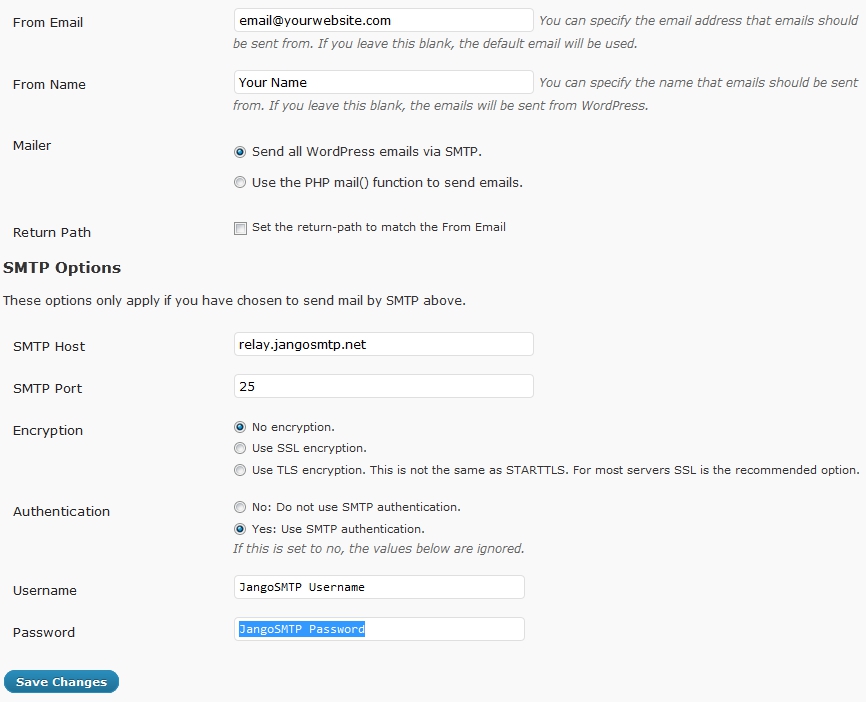
Then log in to your Wordpress blog, go to the plugins page and enable the WP-Mail-SMTP plugin. Go to the settings page for this plugin and enter this information:

Mailer: Send all Wordpress emails via SMTP.
SMTP Host: relay.jangosmtp.net
SMTP Port: 25 (or whatever you normally use)
Encryption: No encryption (or whatever you normally use)
Authentication: Yes: Use SMTP authentication.
Username: Your JangoSMTP Username
Password: Your JangoSMTP Password

Your settings page should look something like this:


Then all of your Wordpress emails will be sent through JangoSMTP. You can enable tracking and other features through the JangoSMTP settings.

Tuesday, July 19, 2011

The geek gets the girl in the latest JangoSMTP YouTube commercial!

Are you serving your customers well?

The online world can't tell if your customers are a "Big Deal" or not, so make sure they all get first class treatment with JangoSMTP.

Check out our latest video here.


JangoSMTP: Email. Track. Confirm!

Wednesday, June 29, 2011

Configuring Eudora to send using your JangoSMTP account

Recently, we've had several customers contact us asking how to configure JangoSMTP with Eudora 7, so we decided we'd share it on our blog. Configuring an SMTP server with Eudora isn't quite as straightforward as you might expect with an email client, but we'll walk you through the steps necessary to get it working properly.

This guide was created using Eudora 7.1.0.9 and assumes that you've already set up an incoming mail server with your Dominant personality. This guide will cover how to set up an additional personality for sending emails through the JangoSMTP relay.

Getting started with Eudora 7 and JangoSMTP
  1. In Eudora, select the 'Personalities' option from the 'Tools' menu. On the left side of the screen, you should see a list of your current personalities.
  2. Right-click in the 'Personalities' box and click 'New'.
  3. On the 'New Account Wizard' screen, select the 'Skip directly to advanced account setup' option and click the 'Finish' button.
  4. Enter the settings for your account as follows:

  5. Switch to the 'Incoming Mail' tab, and enter relay.jangosmtp.net in the 'Server' field. We don't provide an incoming mail relay, but this setting is required to use an external SMTP relay with Eudora.

  6. Click the 'OK' button.
  7. Send a test message through Eudora, making sure to select the personality you set up your JangoSMTP relay with as the 'From' address.
Setting the JangoSMTP-configured personality for use with any personality
Once you have set up a personality in Eudora that uses the JangoSMTP relay, you can set it to be the default personality to use for all outgoing messages.
  1. Select the 'Options' option from the 'Tools' menu.
  2. Click on the 'Sending Mail' option from the 'Category' menu.
  3. Configure your settings as shown:

  4. Click 'OK'.
  5. Now all of the messages you send from Eudora will use the personality you selected.
Changing your outgoing SMTP port in Eudora
Many ISP's block port 25, which is the default SMTP server port that Eudora uses. If you try to send a message and receive the following error:
Could not connect to 'relay.jangosmtp.net' Cause: connection timed out (10060)
It may be the case that port 25 is blocked on the network you're using. To resolve this, you can change the SMTP port that Eudora uses:

Using Windows:
  1. Close Eudora if it is currently running.
  2. Navigate to the folder where Eudora is installed (by default, this will be 'C:\Program Files\Qualcomm\Eudora\').
  3. Open the 'extrastuff' folder.
  4. Inside this folder, you should see a file name 'esoteric.epi'. Copy this file into the main Eudora folder.
  5. Start Eudora again.
  6. Select the 'Options' option from the 'Tools' menu.
  7. Click on the 'Ports' option from the 'Category' menu. You will see this:

  8. Change the port listed in 'SMTP Port (25)' to one of the other ports we make available (we accept connections on ports 25, 2525, 465, and 587 - we recommend starting with 2525).
  9. Click the 'OK' button and try sending again.
And that's it! You should now be able to relay email through JangoSMTP using Eudora. If you have any problems at all, please contact our support team and we'll be glad to help!