Showing posts with label email tracking. Show all posts

Monday, March 12, 2012

How to Use JangoSMTP from a Python Script

Like many other programming languages, Python provides a built-in library for sending SMTP emails. After you import smtplib, all you have to do is instantiate a MIMEMultipart object to hold email information, then send the message via smtplib.SMTP.

This example demonstrates how to set up and send an email from a Python script using JangoSMTP. Download the source code for this example, insert your own JangoSMTP username/password/etc and start sending tracked emails today!

# create the message object
msg = MIMEMultipart('alternative')
msg['Subject'] = "JangoSMTP from Python Test"
msg['From'] = FromAddress
msg['To'] = ToAddress
 
# Create a plain-text and an HTML version of the message
text = "This is a plain text email sent from a python program!"
html = """\
<html>
  <head></head>
  <body>
    <p>
      This is an html email sent from a <b>python</b> program!
    </p>
  </body>
</html>
"""
 
# JangoSMTP credentials
username = "Your JangoSMTP Username"
password = "Your JangoSMTP Password"

# store both parts of the email
part1 = MIMEText(text, 'plain')
part2 = MIMEText(html, 'html')
 
# Attach parts into message container.
msg.attach(part1)
msg.attach(part2)
 
# Open a connection to the JangoSMTP server
s = smtplib.SMTP('relay.jangosmtp.net', 25)
 
# Authenticate
s.login(username, password)
 
# send the email
s.sendmail(FromAddress, ToAddress, msg.as_string())

Monday, February 6, 2012

How to Send Joomla Emails Through JangoSMTP

If you're using Joomla to manage your website, then you don't need any additional plugins to start sending through JangoSMTP. Just go to Global Configuration, then Server, then change the Mail Settings in the lower right-hand corner of that screen.

Mailer: SMTP
From Email: Your Stored From Address
From Name: Your Name
SMTP Authentication: Yes
SMTP Port: 25 SMTP
Username: Your JangoSMTP Username
SMTP Password: Your JangoSMTP Password
SMTP Host: relay.jangosmtp.net

Your settings should look something like this:

Monday, January 16, 2012

How To Use JangoSMTP With Wordpress

Wordpress is one of the most popular blogging platforms on the web. If you're serious about blogging, it's important that your Wordpress-generated emails are tracked and delivered, and JangoSMTP can help with that. Setting up Wordpress to send via JangoSMTP is a snap!

Start by downloading and installing the WP Mail SMTP plugin. To install it, just unzip it and upload it to your plugins folder, which can be found within the wp-content folder.

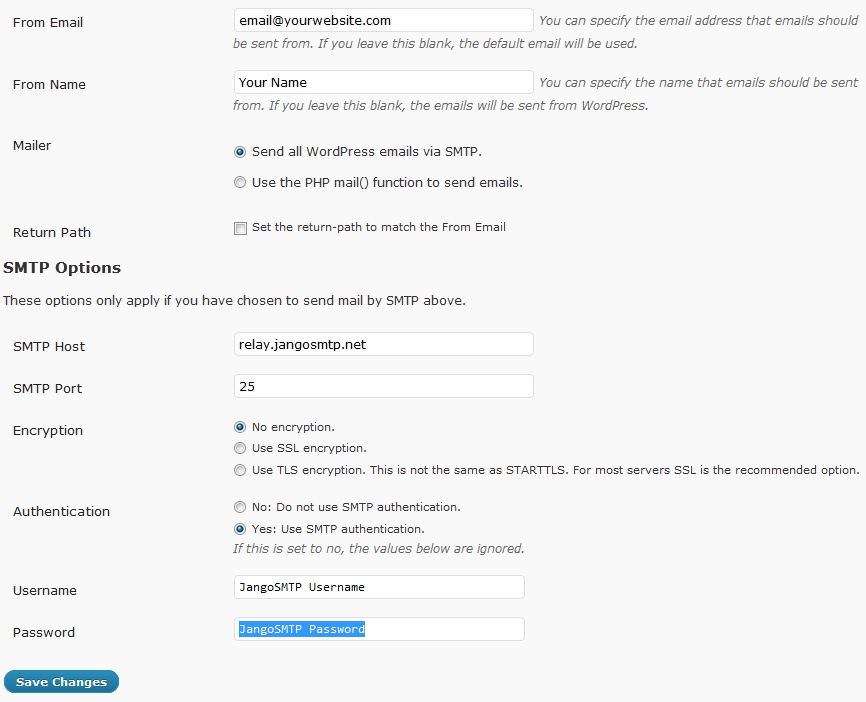
Then log in to your Wordpress blog, go to the plugins page and enable the WP-Mail-SMTP plugin. Go to the settings page for this plugin and enter this information:

Mailer: Send all Wordpress emails via SMTP.
SMTP Host: relay.jangosmtp.net
SMTP Port: 25 (or whatever you normally use)
Encryption: No encryption (or whatever you normally use)
Authentication: Yes: Use SMTP authentication.
Username: Your JangoSMTP Username
Password: Your JangoSMTP Password

Your settings page should look something like this:


Then all of your Wordpress emails will be sent through JangoSMTP. You can enable tracking and other features through the JangoSMTP settings.

Thursday, December 2, 2010

Presenting...the first ever JangoSMTP YouTube commercial

You've sent an urgent email. Hours pass, and no response. Do you keep your cool, or fly off the handle?


Thursday, July 16, 2009

Bug fix: Using the unsubscribe link in transactional emails

We have fixed a bug that prevented the unsubscribe link from working properly in transactional emails, including emails sent with the trackable SMTP relay.

To insert an unsubscribe link into transactional emails, do so the same way as you would with a regular email broadcast campaign, using a snipped of HTML code:

Just link to this URL:

http://x.jango9.com/u.z?***uniqueid****

and be sure to replace x.jango9.com with your account's actual Tracking Domain. The system default Tracking Domain is currently x.jango9.com.

If you link to the above URL in a transactional email, the ***uniqueid**** will be replaced by the JangoMail email engine with a string unique to your recipient. Then, then the URL is clicked, the recipient will be added to your account's unsubscribe list, preventing said person from receiving future emails from your account.