Showing posts with label transactional emails. Show all posts

Friday, August 9, 2013

Baby Come Back: Measuring Upsells in Transactional Emails

Pat yourself on the back, marketing genius. A customer has visited your website and made a purchase. If they've gone that far through the funnel, you're definitely doing something right.

Thanks to JangoSMTP triggers, your customer receives an email confirmation of their order soon after the transaction. As they'd expect, the confirmation includes all the usual suspects - item(s) or service(s) ordered, pricing, shipping method and address. And if you're really on the ball, their estimated ship date.

To this engaged customer, you may have even included a thoughtful "thanks for your business" or "please visit us again." And while that's a step in the right direction, why stop there to secure a repeat customer?

Consider a cross-sell while customers are in the mood
To make the most of your JangoSMTP experience, consider a cross-sell. Not a follow-up email or customer service outreach but an offer right inside the transactional email. You know, that expected outreach they're expecting and sure to open.

Cross-sell content, images and offers are commonplace in transactional emails these days. Customers expect to see them, so it's totally fine to deliver upon those expectations, especially if it means the potential for another transaction.

Cross-sells can not only show customers that you want to ensure they get the most from their product or service purchased, but also that you know them personally. If they purchased exercise gear, highlight water bottles. If they ordered tickets to a movie, educate them on upcoming releases. If they opted into your quarterly newsletter about knitting, ask them to opt into other lost arts email groups. The more products and options that are relevant and public to them, the more likely they'll respond to both of your mutual benefits. Grow their attachment to you ... grow more lists and sales for your business.

Careful placement is key
Unobtrusive is typically the key. Make sure the important information is the most obvious (what was ordered and how much it costs, anticipated ship date). Place the upsell imagery or content low on the email or to the side within a margin. Be discrete, yet eye-catching and attention-worthy. This is a value-add, not an anvil to the head. Highlight related items, services, coupons for future purchases, newsletter or blog opt-ins to horizontally grow your lists. Try testing upsell sizing. Does smaller work better? Do customers respond better to one item or three? If you're a JangoSMTP customer, testing and tracking is a snap ...

Track and attack: The JangoSMTP difference
JangoSMTP, unlike many other services, offers open and click tracking features on transactional emails. So you can see how successful your transactional emails are at encouraging customers to come back. Are customers clicking on the promoted sections of the email or just parts related to the order? Mystery solved - all the information you'll need to determine what's working and what's not is at your fingertips.

Order to ship: Stay with engaged customers
Order confirmations are just the beginning. Include cross-sells in shipping confirmations, too. Use tact. If recipients have already received cross-sells and not responded to this tactic, try another strategy. Perhaps their shipping confirmation updates include a coupon or discount for future services or product purchases. Try testing these options by switching out which cross-sell will be presented to different groups first. Based upon those test results, you'll discover a winning strategy that reaps the most ROI. Do different blast times make a difference? Higher or lower purchase levels? Test again and nail down your winning path.

If you have any questions about making the most of your transactional emails, contact us any time. We're here to help!

Monday, May 20, 2013

For Maximum Visibility, Push Events To Your Own Server

If you haven't made use of this cool JangoSMTP feature, you should give it a long, hard think.

Our transactional email event API is a system that can call a web service or web page on your server when triggered by any of these transactions within and around your emails. (And we're sure you're watching these pretty closely):
  • EMAIL SENT
  • OPENS
  • URL CLICKS (interior content)
  • UNSUBSCRIBES
  • BOUNCES
  • COMPLAINTS (via Feedback Loop)
This key event data in the life cycle of your email is pushed - in real time - directly to your server. So, you're always in the know about the overall success of your transactional email. Plus, you can make adjustments and improvements on the fly to strengthen ROI.

How to set up your event-based push
  1. Go to Settings > Advanced > Transactional Event API
  2. Click on the tab for every event you want a call to your web service or page
  3. Enter the details for your web service or page


Try this while you're there
Custom coding can be used to create unique notifications, logging or custom integration into your own back end. We're always up for developing new ways to help you make JangoSMTP your own - so ask us to jump in and help any time.

For the record
Transactional email event API is a relatively new feature for JangoSMTP. We've had a Standard email API, which you can learn more about in this PDF tutorial.

Here's the key difference between the two: The Event API pushes event data (opens, clicks, etc.) to your system as the event occurs. The Standard API needs to be pulled by your system to retrieve open or click data. Before you consider the new API a "lazy man's lobster" version of the old, remember that technology evolves. And as it does, we're on the lookout to bring it to you fast. But everyone has a preference, so it's up to you to choose what works best for your company.

If you have any questions about Event API or any other JangoSMTP features, hit us up. We'd love to hear from you.

Until then, have a great rest of the week!

Friday, May 4, 2012

Our Latest Email Commercial: Undelivered. Undead.

What happens to emails that aren't sent with JangoSMTP?

They roam for an eternity in the nether regions of the email underworld. Not quite dead, but lost in the maze of network obstacles and spam filters.

Be your Email's hero and keep him away from the pile of the email undead.


Ready to save your emails from Zombiehood? Sign up for a free JangoSMTP account at http://www.jangosmtp.com/Free-Account.asp.

Wednesday, February 22, 2012

JangoSMTP: We’ve got your back.

Want to make sure your email is safe? We know you do. That’s why
JangoSMTP’s got your back.

Wielding an unbeatable combination of superpowers, cutting edge email deliverability
tools, and a new interface as sleek as her outfit, JangoSMTP is your email’s
superhero.

You can stop worrying now. With a transactional service this bad ass, kick back and relax. JangoSMTP’s got your back, so your email will get where it needs to go.


JangoSMTP: Your email’s superhero.

Not a customer yet and want to see just how bad ass transactional email marketing
can be? Be our guest. Sign up for a free JangoSMTP account at http://www.jangosmtp.com/Free-Account.asp.

Wednesday, February 8, 2012

Sending Transactional Emails from a PHP Script

It's easy to send SMTP emails using PHP and JangoSMTP. Just upload the Swift Mailer library to your server, then set up an SMTP email using swift.

This example demonstrates how to set up and send an email from a PHP script using JangoSMTP. Download the source code for this example, insert your own JangoSMTP username/password/etc and you're ready to rock!

// include the Swift Mailer code
include_once "Swift/lib/swift_required.php";
 
// Set up the plain text body of the email
$text = "A plain text message sent from a PHP script!\n";
// set up the HTML portion of the email
$html = <<<EOM
<html>
  <head></head>
  <body>
    <p>This is an HTML message sent from a PHP script!
    </p>
  </body>
</html>
EOM;
 
// set the from address
// this must be an address stored in your JangoSMTP settings
$from = array('YourEmail@YourDomain.com' => 'Your Name');
// add recipients
$to = array(
  'ToAddress@Domain.com'=>'Recipient Name'
);
// set the subject of the email
$subject = 'JangoSMTP Transactional Email from PHP';
 
// your JangoSMTP login credentials
$username = 'Your JangoSMTP Username';
$password = 'Your JangoSMTP Password';
 
// setup Swift mailer parameters
$transport = 
    Swift_SmtpTransport::newInstance('relay.jangosmtp.net', 25);
$transport->setUsername($username);
$transport->setPassword($password);
$swift = Swift_Mailer::newInstance($transport);
 
// set up the email message in swift
$message = new Swift_Message($subject);
// set the body of the email
$message->setFrom($from);
$message->setBody($html, 'text/html');
$message->setTo($to);
$message->addPart($text, 'text/plain');
 
// send the message through jangosmtp
if ($recipients = $swift->send($message, $failures))
{
 // inform the user if sending succeeds
 echo 'Email sent to '.$recipients.' users';
}

Tuesday, July 19, 2011

The geek gets the girl in the latest JangoSMTP YouTube commercial!

Are you serving your customers well?

The online world can't tell if your customers are a "Big Deal" or not, so make sure they all get first class treatment with JangoSMTP.

Check out our latest video here.


JangoSMTP: Email. Track. Confirm!

Monday, February 7, 2011

The JangoSMTP commercial you didn't see during the Super Bowl

Amongst the bevy of entertaining commercials that aired during the big game, here's one you didn't get to see -- the new JangoSMTP commercial. Did the NFL ban it for racy content?  No, it's just that we thought $3.5M could be better spent elsewhere, like adding features and making infrastructure improvements. Enjoy!

Tuesday, February 1, 2011

How Does JangoSMTP Compare to Amazon SES?

By now many of you have probably heard about Amazon's new Simple Email Service (SES). If you haven't heard, Amazon recently launced SES, a low-cost, very basic API-driven transactional email service. There are many people interested in learning more about how this compares to JangoSMTP, so we wanted to help you understand how both email services work.

How does JangoSMTP compare to Amazon SES and which is the right service for me?

If you are looking for a minimalist email service for the lowest price, then the Amazon SES may make sense for you.

JangoSMTP is more robust, in that it has both API and SMTP relay options, along with bounce and unsubscribe management, open and click tracking and advanced reporting (Google Analytics, logging, etc.).

Do you need more than a simple sending service? This is not a one size fits all industry, so consider the following in making your choice so that you get the right fit for your needs:

- Delivery assistance. How do you confirm your messages are getting through, and how do you get help if they are not?

- Development skills. Do you have the development resources available to build to an API? Do you need to build an automated solution to handle complaints and bounces as you receive them? (Amazon sends these back to the From Address used in the campaign, and you have to handle them locally.)

- Reporting. What do you want to see about how your mailings are doing? Do you only need a log of messages sent, or do you want to see if they’ve been opened, links clicked, etc.?

There is a lot of room in the high volume email industry, and you want to find the right fit so that your integration doesn’t leave you frustrated with your results.

Here's a quick comparison chart for reference:

Feature
JangoSMTPAmazon SES

Open Tracking
YesNo

Click Tracking
YesNo

Automatic DKIM Signing
YesNo

Google Analytics Integration
YesNo

Log reporting
YesNo

Real-Time Reporting
YesNo

Automated Complaint/Bounce Handling
YesNo

Customer/Delivery Support
YesNo

API
YesYes

SMTP Relay Server
YesNo

Price Per 1,000
$0.97- $7.00$0.10

Free Service
200 emails/month2,000 emails/day

Tuesday, December 21, 2010

You will now see higher transactional email open rates

Tonight we've made a slight adjustment to how JangoSMTP detects an "open" on a transactional email sent via the API or the SMTP server (relay.jangosmtp.net).

First, some background

Email systems detect that an email has been opened by inserting a 1-pixel image at the bottom of the email message and waiting for that image to be downloaded from the server. Some email programs block images by default, and therefore they prevent transactional email systems like JangoSMTP from detecting the "open". If an email message can be understood by its recipient by not seeing the actual images, because perhaps there is enough text to explain the email message, then it's even more likely that the 1-pixel image won't be downloaded.

Therefore, we have always only counted an email as being "opened" if the 1-pixel image at the bottom of the email was downloaded, meaning that the recipient had viewed the email, and that images (even if there aren't any in the email body) are turned on.

New way to detect an open

We recently determined, however, that in many cases, a recipient may click a URL in an email (thus counting as a click), but never downloads the images in the email (thus NOT counting the open). And since clicking the email is indicative of also opening it, we've made the following change to Open Tracking:

If an email is clicked, but that recipient has not yet been counted as an "open" for that email campaign because images haven't been downloaded, the recipient now WILL get counted as an "open" anyway due to the click.
The net effect of this change is that you will now see higher Open Rates on Transactional Groups, and the Open Rates will be more accurate and reflective of what recipients are actually doing with the transactional email message.

How much of a difference does this make?

Our analysis shows that this makes a big difference. For a recent email campaign we did to a segment of our own customers, these were the statistics in Reporting:

Recipients: 6,369
Unique Opens: 993 (15.6%)
Unique Clicks: 384 (6.0%)

An analysis of the data showed that there were 118 unique recipients that clicked that never registered as having opened the email. So if we add the 118 to 993, that's now a total of 1,111 opens, for an actual open rate of 17.4% instead of 15.6%.

Sunday, November 14, 2010

Transactional Email integration with Google Analytics

Google Analytics integration is now available with transactional email sent through the SMTP relay or through the API.

To start tracking your transactional email with Google Analytics, first turn on Google Analytics in your JangoSMTP account. Click the Edit Icon next to Google Analytics Integration under Settings --> Tracking and follow the steps outlined in the Procedure section.


Transactional email with click-tracked links will take the recipient to a URL that looks like this:

http://www.browniekitchen.com/?utm_source=JangoMail&utm_medium=Email&utm_campaign=Welcome+Group+(22514)&utm_content=ajay.goel%gmail.com

For transactional email, the Campaign Name inside your Google Analytics account will be the Transactional Group Name inside your JangoSMTP account. And the Content inside your Google Analytics account will be the email address of the recipient.

For transactional email, it wouldn't make sense to use each individual email's Subject line, because if you send 1,000 transactional emails, all with different Subject lines, you'll end up with 1,000 different campaigns in your Google Analytics account, and making sense of the data would be impossible. That's why transactional emails will be categorized by their Transactional Group Name and not their Subject.

You may use any combination of these values in the four Google Analytics variable fields:

%%EmailAddress%% = the email address of recipient
%%TransactionalGroupName%% = the Transactional Group Name of a transactional email
%%TransactionalGroupID%% = the Transactional Group ID of a transactional email


To set this up...

1. You must have click-tracking enabled on your transactional email. If using the SMTP Relay, check the Activate Click Tracking checkbox under Settings --> Tracking --> General. If using the transactional email API, set "ClickTracking=True" in the Options input parameter of one of the following methods:

SendTransactionalEmail
SendTransactionalEmailFromTemplate

2. Turn on Google Analytics by checking the box under Settings --> Tracking --> Google Analytics Integration, as shown in the second screenshot.

Wednesday, October 27, 2010

New Feature: Our platform, your servers

Going Freemium: Our platform, your servers

You can now use JangoSMTP's interface, features, and functionality, with your own email servers. Specifically, you can now designate one or more "Smart Hosts" for your JangoSMTP account and have all transactional email sent by the Smart Hosts instead of JangoSMTP's own email servers. A smart host is an email server on your own network or one that you control. The best part is you can send 100,000 emails/month for free when using your own email servers to deliver your email.

How can this possibly work?

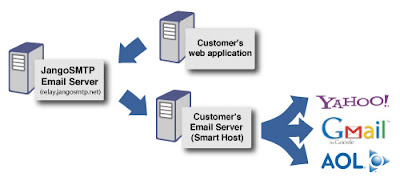
By setting your account to use a Smart Host, you are telling JangoSMTP to route email messages through the Smart Host rather than directly to the recipients. The Smart Host will actually deliver each email message to the recipient.

For example, let's say you manage www.browniekitchen.com. Your corporate email servers are smtp.browniekitchen.com and smtp2.browniekitchen.com, and you want your transactional email sent from your servers instead of ours. You would designate these to be the Smart Hosts for your JangoSMTP account. You then use your JangoSMTP account to send 100 email messages, to varying domains, like yahoo.com, gmail.com, and aol.com. JangoSMTP will send all 100 emails to smtp.browniekitchen.com and smtp2.browniekitchen.com, and these servers will then deliver the email messages to Yahoo's, GMail's and AOL's servers.

In essence, when using Smart Hosts with the SMTP relay, your application would relay the emails to relay.jangosmtp.net, which would then process the email, add open tracking, click tracking, and a DomainKeys signature, and then relay the email back to your own server for delivery to the recipient.

So the Smart Host is just a middleman server between JangoSMTP and the final recipient?

Yes. It allows the emails to originate from your IP and your domain name and your organization rather than ours. It allows you complete control over your own email deliverability, and allows you to monitor SMTP logs, traffic, blocks, and throttling on your email server. Learn more about Smart Hosts with the Wikipedia article on Smart Hosts.
What's the point of this feature?

This feature is meant for those customers that want to use us for everything, except email deliverability, and enjoy a significant cost savings for doing so. It's for those that like our feature set, our interface, our API, and everything else about JangoSMTP, but don't need us for actual email delivery, because their own email servers can handle that.

We spend a lot of time ensuring that our own email servers are clean, fast, of high reputation, and secure. Deliverability issues can also be difficult to research. By allowing you to have the emails sent from your own email servers, it gives you the full power to research such issues because you now have the information necessary to do so.

Setting up this feature is not for the average JangoSMTP user. It's meant for network administrators, sysadmins, and developers who want to take advantage of a significant cost savings by offloading email delivery onto their own network. When using a Smart Host, you must ensure that the Smart Host is configured properly to deliver high volume email. Most corporate email servers are not able to deliver high volume email because a.) Their upstream ISP does not allow the network to be used for mass email delivery and b.) The IP address of the organization's email server does not have the deliverability reputation necessary to deliver large amounts of emails to consumer email domains, like gmail.com, yahoo.com, aol.com, and live.com. This reputation can be developed over time, however, using a process called IP Warmup.

How do I configure my Smart Host to send emails from JangoSMTP?


Click the Edit Icon next to Settings --> Advanced --> Smart Hosts. You must ensure that your Smart Host server is able to relay emails that originate from our IP addresses. By default, all emails being routed to Smart Hosts will be sent from one of three IP addresses:

sh1.jsmtp.net - 216.75.6.141
sh2.jsmtp.net - 209.190.39.50
sh3.jsmtp.net - 66.40.10.14

This list of servers is also shown in this section. You should enter all of the IP addresses into the "Authenticated IPs" or "Allow Relays From these IPs" settings in your smart host's SMTP settings.

Optionally, if your Smart Host server is able to authenticate by domain name, you can allow any servers that are named *.jsmtp.net to relay through your server. That way, should the JangoSMTP IP addresses change, you won't need to change your smart host configuration.

If you don't do this, when JangoSMTP attempts to send emails to your smart host, JangoSMTP will get a "Relay access denied" or "Unable to relay email" type SMTP error, and the email will not deliver.

You can test your email server's configuration with the Test Icon under Settings --> Advanced --> Smart Hosts. The test feature will attempt to relay an email message through your email server from all three JangoSMTP servers. If the test passes, you're ready to send through your Smart Hosts. If the test fails, that means you haven't configured your Smart Host properly to allow SMTP relays from the three JangoSMTP IP addresses.


In the above example for the Brownie Kitchen account, emails sent to yahoo.com will be sent by smtp2.brownikitchen.com and all other emails will be sent by smtp.browniekitchen.com. Domain-specific rules take precedence over an ALL DOMAINS rule.

Can I use a third party server as my JangoSMTP Smart Host?

Yes, you can! There are many third-party SMTP services, any of which you can use as a smart host with JangoSMTP, provided that third-party SMTP service allows relay authentication by IP address. Remember that wherever your smart host is located, it must allow relays from our three IP addresses:

sh1.jsmtp.net - 216.75.6.141
sh2.jsmtp.net - 209.190.39.50
sh3.jsmtp.net - 66.40.10.14

Unfortunately we do not support SMTP-AUTH authentication.

This may lead to the question: Can a JangoSMTP user use JangoSMTP as the Smart Host? Your account is prevented from doing this, as this would create an infinite email loop.

Won't SPF/SenderID fail if I set a smart host?

Not if you set up properly. You must carefully take into account SPF/SenderID settings when using a smart host. You need to ensure the following:


  1. Ensure that the MAIL-FROM setting is correct.

    a. Transactional email via API: Set UseSystemMailFrom in the Options parameter to False.
    b. Transactional email via SMTP Relay: Uncheck the Use system MAIL-FROM address box under Settings --> Tracking --> General.


  2. Ensure that the SPF record for the domain in your From Address, which is a DNS TXT record, includes the IP address of your Smart Host.

    For example, if you're sending emails from orders@browniekitchen.com, and your Smart Host is smtp.browniekitchen.com, and the IP address for smtp.browniekitchen.com is 10.10.10.5, then the SPF record for browniekitchen.com might look like this:

    "v=spf1 include:jangomail.com ip4:10.10.10.5 a mx -all"

    While the include:jangomail.com directive is not necessary, it can be left in place in case Smart Hosts are ever removed from your account in the future.
How do I set up Feedback Loops (FBLs)?

Most feedback loops (FBLs) work based on the sending IP address. Yahoo! is the exception, as it's based on the DomainKeys signature. Since by using Smart Hosts, the sending IP address will be that of your own email server, you must set up FBLs for your own IP. For ease of management, you may have the abuse reports sent to fbl_sh@us.jangomail.com, a special email address we've set up to process Abuse Reports for customers using Smart Hosts.

How do I my ensure DomainKeys/DKIM settings work?

DomainKeys/DKIM headers are preserved in transit, so regardless of how many email servers your messages bounce between before arriving to their final recipient, your DomainKeys/DKIM headers will remain intact.

What are the disadvantages of using Smart Hosts?

When you have your emails sent through your own smart hosts, you are in charge of all email delivery issues. Our support staff will only be able to provide very limited help for email delivery issues since the email is being sent from your server, not ours. Therefore, it's only recommended you use this feature if you're able to monitor your delivery as well. All tracking functionality, like open tracking, and click tracking, and web site activity tracking, will still work, and you'll still see all of that data in Reporting.

Will I lose any functionality if I send through a Smart Host?

No. Every single JangoSMTP feature will still work. The only difference when you setup Smart Hosts is that the emails are sent from your servers, not ours.

What if I try sending through my own servers, but I find the email deliverability too difficult to manage?

No problem, you're welcome to come back to the "regular" JangoSMTP service and have the emails sent through our high deliverability servers. All you have to do is delete the Smart Hosts entries from your Settings --> Advanced --> Smart Hosts page.

What are the cost savings for sending through my own servers?

You may send up to 100,000 emails/month for free through JangoSMTP if using Smart Hosts.

Exactly what do I need to do to set up Smart Hosts for my account?

  1. Configure your Smart Host. Modify your email server's settings to allow SMTP relays from the three above-mentioned IP addresses.
  2. Add the Smart Hosts into your JangoSMTP account. Go to Settings -> Advanced --> Smart Hosts, and add the Smart Host. Then Test it to ensure that your email server is setup correctly.
  3. Set up SPF/SenderID. Go to Settings --> Tracking --> General and uncheck the Use system Mail-FROM address checkbox. Additionally, ensure that the IP address of your Smart Host is listed in the SPF record of your organization's domain.
  4. Set up Feedback Loops, so that complaint reporting is reflected in your account. Set up feedback loops with AOL, Comcast, Juno/NetZero, Yahoo! and anyone else that allows them, and have the Abuse Reports sent to fbl_sh@us.jangomail.com so that our system can process them.

Thursday, August 19, 2010

New method to specify Transactional Group using the SMTP server

We've introduced a new method to assign a transactional email to a Transactional Group. Along with specifying the Transactional Group in the Subject line, you can now also specify it in a custom X-Header.

If you're using the JangoSMTP server to send transactional email, you're likely familiar with the concept of Transactional Groups -- categories to which you can assign various types of transactional emails. For example you may have the following Transactional Groups set up in your account:

1. Order Confirmations
2. Renewal Reminders
3. Thank Yous

Previously you could assign an email to a particular Transactional Group by specifying the Transactional Group's name in the Subject Line surrounded by curly brackets. For example, if I sent an email with the Subject:

Subject: Thanks for your purchase {Thank Yous}

...then this email would get assigned to the Transactional Group called "Thank Yous", and the email would be sent with the curly brackets and the part in between stripped out.

Now, there's an alternate way to assign an email to a particular Transactional Group...you can specify an X-header with the Transactional Group's ID. If you're sending emails through relay.jangosmtp.net programatically, such as through .Net or PHP code, and if you have the ability to add an X-header to the email message, you can use this method. The format is as follows:

X-TransGroupID: TransactionalGroupID

For example, if the Transactional Group "Thank Yous" had an ID number of 78929, then you would add the header:

X-TransGroupID: 78929

Specifying an X-TransGroupID header overrides any Transactional Group designation in the Subject Line.

You can retrieve the ID number of a Transactional Group by going to the Transactional Reporting section of your account, where the various Transactional Groups are listed, along with their delivery statistics and their ID numbers.