Showing posts with label smtp. Show all posts

Tuesday, April 8, 2014

Protect Your Fleet with JangoSMTP


By: Erica Melzer
Account Executive
As the mother of three young children, I am already losing sleep over the thought of Cooper, Chase, and Amelia driving real cars on actual roads. Still, their coming adolescent years are very real things that I will eventually have to face. Like it, or not.

It's a well-known statistic, at this point, that car crashes are the leading cause of teen death in the United States. What you may not know is that, according to Geico, one in five 16 year-old drivers will be involved in an accident during their first year on the road and most of these, as with all types of accidents, will be speed-related.

When the time comes, I plan to monitor what my children do with their cars using GPS tracking. There are several in-vehicle monitoring devices and programs like OpenGTS that will send an email to my husband and I when one of our kids exceeds the speed limit or travels outside of their approved radius or “geofence.” These devices can also record and send a kid's exact routes, stop times, speeds, and more. A few of the tracking systems can even send us a warning message if our teen driver's seatbelt is left unbuckled.

Fortunately, I don't really have to start worrying about this for another 10 years or so (like that's going to stop me.) If you have a teen driver on the road already, you can use JangoSMTP to send alerts like these to your email address or smartphone today. Click here and find out how OpenGTS and JangoSMTP can help you keep an eye on your teen driver.

There is also huge potential for the commercial use of similar devices and programs. Trucking companies and businesses in service-related industries can keep track of their trucks and vans, keep their drivers safe, and lower their insurance premiums by installing devices into each of their fleet vehicles. Whether you plan to track your vehicles at home or keep an eye on your own fleet, JangoSMTP can provide the relay server you need to make the whole thing work and keep everyone safe.

JangoSMTP can be used with any device or program that requires an SMTP server to relay messages. If you have questions about setting something like this up, call 888-465-2646 between 7 AM and 7 PM (US/EST) Monday – Friday, and talk to one of our knowledgeable Support Reps. That's right, our free trial accounts get phone support, too!


Thursday, February 20, 2014

Our New Mascot and Educational Series, “James Explains”

By: Melonie Mottice
Marketing Specialist

Introducing….James, the most interesting animal in transactional email.

“I don't always have SMTP questions, but when I do, James Explains.”

Meet James, our new JangoSMTP mascot. James the Jangolope is Jack, the JangoMail mascot's, eccentric cousin. Not only is he extremely good looking, but he is also knowledgeable about all things JangoSMTP.


Each month, look for our new “James Explains” emails and blog posts on transactional email advice, trends, and quick tips. James will offer insight on how to improve your SMTP plan and how to use your JangoSMTP account to the fullest.

Subscribe to James Explains.

What is a jangolope?
To start, a jackalope is a mythical creature known as a jackrabbit with antelope horns. Over time the jackalope continued to change into what we, at JangoSMTP and JangoMail, call the jangolope.

Long, long, long ago a curious jackrabbit stumbled upon an old computer. He grew tired of receiving and sending plain, ineffective emails. The jackrabbit thought long and hard. He knew there had to be a way to incorporate tracking capabilities into transactional messages. As his idea grew, so did his antlers.

Through the wild countryside of North America, the jackalope soon became known as the jangolope because of his savvy computer skills. James is a direct descendant of the original jangolope. Half jackrabbit, half antelope, 100% email professional.

We want to hear from you. 
Have a topic you would like James to cover? Email us at marketing@us.jangomail.com with the subject line: James Explains.

Monday, November 25, 2013

Hey Griswold, The Little Lights Aren't Twinkling

By: Melonie Mottice
Marketing Specialist


It's that time, Christmas time is here
Everybody knows there's not a better time of year
Hear that sleigh, Santa's on his way
Hip, Hip Hooray, for Christmas Vacation

It is that time of the year! Not only is watching National Lampoon’s Christmas Vacation a must, but so is decorating your home for the holidays. While the sound of “250 strands of lights, 100 individual bulbs per strand, for a grand total of 25,000 imported Italian twinkle lights,” might be overwhelming, a lot of us like to show our holiday spirit with outdoor Christmas lights, and JangoSMTP can make it easier!


Throughout the 1989 movie, the main character, Clark W. Griswold, is on a mission to host 'the most fun-filled old-fashioned family Christmas.' Clark escapes his in-laws by putting up Christmas lights on nearly every inch of his house, but can’t get them to work. When they finally turn on, his family is ecstatic to see the house...everyone but his father-in-law, Art. Art immediately notices that the little lights aren't twinkling – a minor detail in the whole elaborate display.

Fast forward to today. If Clark had the technology we have, he wouldn't have to rely on Art. Instead, he could connect all of his outdoor timers to an SMTP server like JangoSMTP. Any time the little lights weren't twinkling, he would be notified via email on his smartphone.

Nowadays, some houses and even neighborhoods decorate every inch of their lawn. There are sensors, timers, and heck, you can even program your lights to the sound of Christmas carols. Even if you aren't going all out like Clark, you can set up email notifications confirming the activity of your lights, indoor and outdoor, using JangoSMTP.

Before Aunt Bethany thinks your house is on fire, or Art informs you the little lights that aren't twinkling, connect your Christmas light timers to our SMTP server. Try a JangoSMTP 30-Day Trial and send up to 500 emails for Free.

Wednesday, May 22, 2013

Don't you have better things to do than babysit your SMTP Server?

Check out our latest video:


What will your IT team do with their free team after signing up with JangoSMTP?

Let us know what you think and sign up for a free account here!

Thursday, April 4, 2013

Upgrade your emails with vBulletin

The first step to maximizing the effectiveness of popular forum software, like vBulletin, is to enhance them through configuration with JangoSMTP or JangoMail.

vBulletin is a helpful forum software package that facilitates online community discussions related to your business. The system also sends a variety of transactional emails: new registration confirmations, topic reply notifications, PM notifications, and more.

So how can JangoSMTP improve your vBulletin account?
JangoSMTP offers more email reporting features than what you will find in vBulletin's package. JangoSMTP's email delivery and tracking capabilities ensure that your signup confirmation emails will go through the first time and be open and click tracked. It's a common issue with forum software - if a user doesn't receive their confirmation email, they can't use your forum. As a result, users need to contact your forum administrator to activate their accounts manually, which is not ideal, especially if you have a large forum.

Here's how to set it up:
1. Log into your vBulletin Admin CP
2. Go to Settings - Options - Email Options - Edit Settings
3. Scroll down to choose the following settings:

  • SMTP Email: Yes
  • SMTP Host: relay.jangosmtp.net
  • SMTP Port: either 25, 2525, 587 or 465 for SSL/TLS connections
  • SMTP Username: use your JangoSMTP username
  • SMTP Password: user your JangoSMTP password
  • SMTP Secure Connection (can be enabled if port 465 is used)

vBulletin can also be used to send mass email newsletters to your users, to keep them engaged. To do so, go to Users - Send Email to Users within your Admin CP and configure it with a JangoMail account.

As always, if you have any questions or need extra help configuring your vBulletin account with JangoSMTP, contact us at any time.

Wednesday, September 5, 2012

JangoSMTP: Because Good Barbecue is Too Important to Leave to Chance

In the exciting world of email, there's a little niche that few think about. Remote monitoring emails are something many never think about. For many of JangoSMTP's customers, these emails are vital to their businesses. JangoSMTP is used to send thousands of monitoring emails for security systems, networking devices, and much more.

Many radio stations have broadcast towers in remote locations, while their offices are closer to town. FCC regulations require regular monitoring and logging of output power levels. In the old days of a decade ago an employee, or an expensive radio link would be used to monitor and log at the remote location. Modern equipment, though, allows the radio station to use JangoSMTP's inexpensive relays to replace expensive equipment and salary costs.

Many security cameras offer email monitoring. Using JangoSMTP, your security system can send you a photo anytime it detects movement. You can then view the email, and see the photo from your PC or even your phone, anywhere in the world.

But wait, you don't run a radio station.  You don't have a security system. You do, though, have a beautiful smoker that you use to make delicious barbecue. Personally, I'm imagining that it's Eastern North Carolina pork barbecue, but you may be a brisket fan. You can use JangoSMTP and the CyberQ II to monitor not one, but two barbecue pits at once. It can email you updates while it continues the low, slow, smoky heat that good barbecue requires.

If you're looking for an SMTP server for your remote monitoring tool, try a Free JangoSMTP Trial Account. You can send up to 200 emails per month with the trial. Need more?  Let us know.

We're JangoSMTP.  We don't make your barbecue, but we do help them make it taste better.

Monday, March 12, 2012

How to Use JangoSMTP from a Python Script

Like many other programming languages, Python provides a built-in library for sending SMTP emails. After you import smtplib, all you have to do is instantiate a MIMEMultipart object to hold email information, then send the message via smtplib.SMTP.

This example demonstrates how to set up and send an email from a Python script using JangoSMTP. Download the source code for this example, insert your own JangoSMTP username/password/etc and start sending tracked emails today!

# create the message object
msg = MIMEMultipart('alternative')
msg['Subject'] = "JangoSMTP from Python Test"
msg['From'] = FromAddress
msg['To'] = ToAddress
 
# Create a plain-text and an HTML version of the message
text = "This is a plain text email sent from a python program!"
html = """\
<html>
  <head></head>
  <body>
    <p>
      This is an html email sent from a <b>python</b> program!
    </p>
  </body>
</html>
"""
 
# JangoSMTP credentials
username = "Your JangoSMTP Username"
password = "Your JangoSMTP Password"

# store both parts of the email
part1 = MIMEText(text, 'plain')
part2 = MIMEText(html, 'html')
 
# Attach parts into message container.
msg.attach(part1)
msg.attach(part2)
 
# Open a connection to the JangoSMTP server
s = smtplib.SMTP('relay.jangosmtp.net', 25)
 
# Authenticate
s.login(username, password)
 
# send the email
s.sendmail(FromAddress, ToAddress, msg.as_string())

Wednesday, February 22, 2012

JangoSMTP: We’ve got your back.

Want to make sure your email is safe? We know you do. That’s why
JangoSMTP’s got your back.

Wielding an unbeatable combination of superpowers, cutting edge email deliverability
tools, and a new interface as sleek as her outfit, JangoSMTP is your email’s
superhero.

You can stop worrying now. With a transactional service this bad ass, kick back and relax. JangoSMTP’s got your back, so your email will get where it needs to go.


JangoSMTP: Your email’s superhero.

Not a customer yet and want to see just how bad ass transactional email marketing
can be? Be our guest. Sign up for a free JangoSMTP account at http://www.jangosmtp.com/Free-Account.asp.

Monday, February 13, 2012

Using JangoSMTP in ASP.Net

Microsoft provides classes for sending SMTP emails using the .Net Framework. This example uses System.Net.Mail to assemble then send an email using JangoSMTP.

Download the source code for this example, insert your own JangoSMTP username/password/etc and start sending tracked transactional emails in your asp.net application.

MailMessage mailMsg = new MailMessage();

// set the from address
// this must be stored in your from addresses
mailMsg.From = new MailAddress(
    "YourEmail@YourDomain.com", "Your Name");

// recipient
mailMsg.To.Add(new MailAddress(
    "ToAddress@Domain.com", "Recipient Name"));

// set the subject and message portions of the email
mailMsg.Subject = "Test Email Subject";
string text = 
    "This plain text email was sent from an ASP.Net script.";
string html = 
    "<p>This html email was sent from an ASP.Net script.</p>";
mailMsg.AlternateViews.Add(
    AlternateView.CreateAlternateViewFromString(
        text, null, MediaTypeNames.Text.Plain));
mailMsg.AlternateViews.Add(
    AlternateView.CreateAlternateViewFromString(
        html, null, MediaTypeNames.Text.Html));

// set up the SMTP client with relay.jangosmtp.net
SmtpClient smtpClient 
    = new SmtpClient("relay.jangosmtp.net", 25);
System.Net.NetworkCredential credentials = 
    new System.Net.NetworkCredential(
         "Your JangoSMTP Username", "Your JangoSMTP Password");
smtpClient.Credentials = credentials;

smtpClient.Send(mailMsg);

Wednesday, February 8, 2012

Sending Transactional Emails from a PHP Script

It's easy to send SMTP emails using PHP and JangoSMTP. Just upload the Swift Mailer library to your server, then set up an SMTP email using swift.

This example demonstrates how to set up and send an email from a PHP script using JangoSMTP. Download the source code for this example, insert your own JangoSMTP username/password/etc and you're ready to rock!

// include the Swift Mailer code
include_once "Swift/lib/swift_required.php";
 
// Set up the plain text body of the email
$text = "A plain text message sent from a PHP script!\n";
// set up the HTML portion of the email
$html = <<<EOM
<html>
  <head></head>
  <body>
    <p>This is an HTML message sent from a PHP script!
    </p>
  </body>
</html>
EOM;
 
// set the from address
// this must be an address stored in your JangoSMTP settings
$from = array('YourEmail@YourDomain.com' => 'Your Name');
// add recipients
$to = array(
  'ToAddress@Domain.com'=>'Recipient Name'
);
// set the subject of the email
$subject = 'JangoSMTP Transactional Email from PHP';
 
// your JangoSMTP login credentials
$username = 'Your JangoSMTP Username';
$password = 'Your JangoSMTP Password';
 
// setup Swift mailer parameters
$transport = 
    Swift_SmtpTransport::newInstance('relay.jangosmtp.net', 25);
$transport->setUsername($username);
$transport->setPassword($password);
$swift = Swift_Mailer::newInstance($transport);
 
// set up the email message in swift
$message = new Swift_Message($subject);
// set the body of the email
$message->setFrom($from);
$message->setBody($html, 'text/html');
$message->setTo($to);
$message->addPart($text, 'text/plain');
 
// send the message through jangosmtp
if ($recipients = $swift->send($message, $failures))
{
 // inform the user if sending succeeds
 echo 'Email sent to '.$recipients.' users';
}

Monday, February 6, 2012

How to Send Joomla Emails Through JangoSMTP

If you're using Joomla to manage your website, then you don't need any additional plugins to start sending through JangoSMTP. Just go to Global Configuration, then Server, then change the Mail Settings in the lower right-hand corner of that screen.

Mailer: SMTP
From Email: Your Stored From Address
From Name: Your Name
SMTP Authentication: Yes
SMTP Port: 25 SMTP
Username: Your JangoSMTP Username
SMTP Password: Your JangoSMTP Password
SMTP Host: relay.jangosmtp.net

Your settings should look something like this:

Tuesday, January 24, 2012

Sending Transactional Messages from a Ruby Application

Do you need to send transactional emails from a Ruby application? Do you need open tracking, DKIM signing and easy to read reports? If so, then JangoSMTP is your solution.

This example demonstrates how to send messages using JangoSMTP from within a Ruby application. You will need the Mail gem, which can be installed with the command gem install mail.

After the mail gem is installed, download the source code for this example and insert your own JangoSMTP username/password/etc. It's as easy as that!
require 'mail'

Mail.defaults do
  delivery_method :smtp, { :address   => "relay.jangosmtp.net",
                           :port      => 25,
                           :domain    => "YourDomain.com",
                           :user_name => "Your Username",
                           :password  => "Your Password",
                           :authentication => 'plain',
                           :enable_starttls_auto => true }
end

# Set up your email
# The from address must be stored in your list of from addresses
# see Settings > Advanced > From Addresses
mail = Mail.deliver do
  to 'To@EmailAddress.com'
  from 'From Name <FromAddress@YourDomain.com>'
  subject 'This is the subject!'
  text_part do
    body 'This plain text email was sent by Ruby!'
  end
  html_part do
    content_type 'text/html; charset=UTF-8'
    body '<b>This HTML email was sent by Ruby!</b>'
  end
end

Monday, January 23, 2012

Integrating JangoSMTP with Java

Since Oracle provides the JavaMail package for sending emails in Java, it's easy to integrate JangoSMTP into your current Java software.

First, you need to obtain the JavaMail library. If you're using the enterprise edition of Java, then you probably already have JavaMail installed. Otherwise, you will need to unzip the contents and add them to your buildpath in Eclipse, or your classpath in Windows. To add the package to your buildpath, click Project > Properties > Libraries > Add External JARs.

Then you can use JavaMail to connect to the JangoSMTP server and send a message. You should connect to relay.jangosmtp.net using your JangoSMTP credentials. We've already built a simple example that will connect to JangoSMTP to send a message.

Properties props = new Properties();
props.put("mail.transport.protocol", "smtp");
props.put("mail.smtp.host", "relay.jangosmtp.net");
props.put("mail.smtp.port", 25);
props.put("mail.smtp.auth", "true");
 
// set up a new authenticator
Authenticator Authorization = new SMTPAuthenticator();
Session JangoSMTPSession = 
             Session.getDefaultInstance(props, Authorization);
Transport transport = JangoSMTPSession.getTransport();
 
// this object will hold the details of the email
MimeMessage EmailMessage = new MimeMessage(JangoSMTPSession);
 
// store the plain text and HTML portions of our email
Multipart MultipartContent = new MimeMultipart("alternative");
 
// first set the plain text message
BodyPart part1 = new MimeBodyPart();
part1.setText(PlainTextMessage);
MultipartContent.addBodyPart(part1);
 
// then set the HTML message
BodyPart part2 = new MimeBodyPart();
part2.setContent(HTMLMessage, "text/html");
MultipartContent.addBodyPart(part2); 
 
EmailMessage.setContent(MultipartContent);
        
// Set the From Address.
// Must be a sender that is saved in your from-addresses.
EmailMessage.setFrom(new InternetAddress(FromAddress));
        
// Set the subject
EmailMessage.setSubject(Subject);
        
// set the to-address
EmailMessage.addRecipient(Message.RecipientType.TO,
                                new InternetAddress(ToAddress));
 
// Connect, Send the Message, and Close the Connection
transport.connect();
transport.sendMessage(EmailMessage, 
          EmailMessage.getRecipients(Message.RecipientType.TO));
transport.close();

With the authentication code that is in the example file, this code will allow you to construct and send a transactional email using JangoSMTP. This email will contain all the tracking and other features set up in the settings section of the JangoSMTP site.

Monday, January 16, 2012

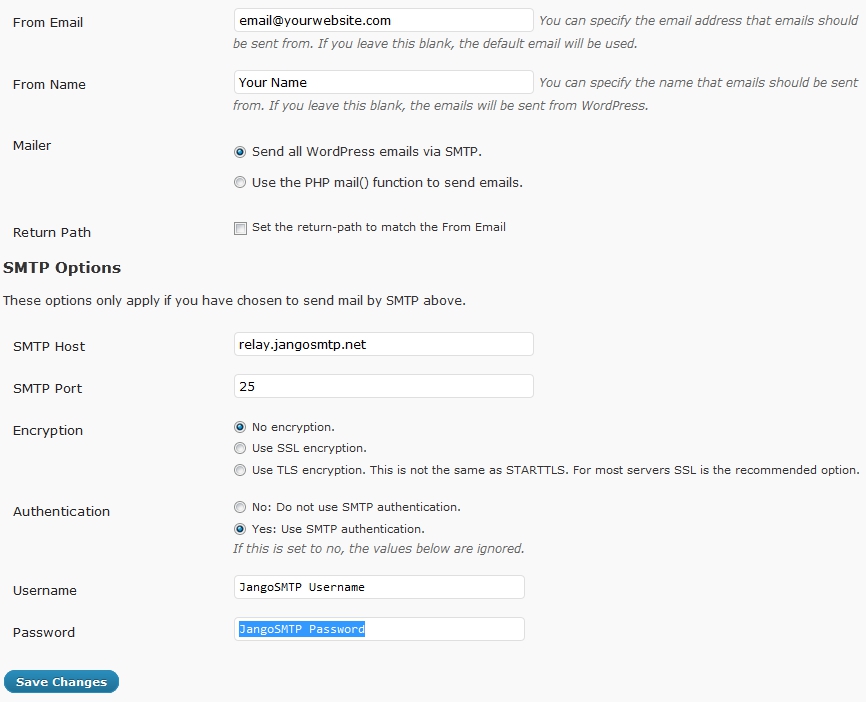
How To Use JangoSMTP With Wordpress

Wordpress is one of the most popular blogging platforms on the web. If you're serious about blogging, it's important that your Wordpress-generated emails are tracked and delivered, and JangoSMTP can help with that. Setting up Wordpress to send via JangoSMTP is a snap!

Start by downloading and installing the WP Mail SMTP plugin. To install it, just unzip it and upload it to your plugins folder, which can be found within the wp-content folder.

Then log in to your Wordpress blog, go to the plugins page and enable the WP-Mail-SMTP plugin. Go to the settings page for this plugin and enter this information:

Mailer: Send all Wordpress emails via SMTP.
SMTP Host: relay.jangosmtp.net
SMTP Port: 25 (or whatever you normally use)
Encryption: No encryption (or whatever you normally use)
Authentication: Yes: Use SMTP authentication.
Username: Your JangoSMTP Username
Password: Your JangoSMTP Password

Your settings page should look something like this:


Then all of your Wordpress emails will be sent through JangoSMTP. You can enable tracking and other features through the JangoSMTP settings.

Wednesday, June 29, 2011

Configuring Eudora to send using your JangoSMTP account

Recently, we've had several customers contact us asking how to configure JangoSMTP with Eudora 7, so we decided we'd share it on our blog. Configuring an SMTP server with Eudora isn't quite as straightforward as you might expect with an email client, but we'll walk you through the steps necessary to get it working properly.

This guide was created using Eudora 7.1.0.9 and assumes that you've already set up an incoming mail server with your Dominant personality. This guide will cover how to set up an additional personality for sending emails through the JangoSMTP relay.

Getting started with Eudora 7 and JangoSMTP
  1. In Eudora, select the 'Personalities' option from the 'Tools' menu. On the left side of the screen, you should see a list of your current personalities.
  2. Right-click in the 'Personalities' box and click 'New'.
  3. On the 'New Account Wizard' screen, select the 'Skip directly to advanced account setup' option and click the 'Finish' button.
  4. Enter the settings for your account as follows:

  5. Switch to the 'Incoming Mail' tab, and enter relay.jangosmtp.net in the 'Server' field. We don't provide an incoming mail relay, but this setting is required to use an external SMTP relay with Eudora.

  6. Click the 'OK' button.
  7. Send a test message through Eudora, making sure to select the personality you set up your JangoSMTP relay with as the 'From' address.
Setting the JangoSMTP-configured personality for use with any personality
Once you have set up a personality in Eudora that uses the JangoSMTP relay, you can set it to be the default personality to use for all outgoing messages.
  1. Select the 'Options' option from the 'Tools' menu.
  2. Click on the 'Sending Mail' option from the 'Category' menu.
  3. Configure your settings as shown:

  4. Click 'OK'.
  5. Now all of the messages you send from Eudora will use the personality you selected.
Changing your outgoing SMTP port in Eudora
Many ISP's block port 25, which is the default SMTP server port that Eudora uses. If you try to send a message and receive the following error:
Could not connect to 'relay.jangosmtp.net' Cause: connection timed out (10060)
It may be the case that port 25 is blocked on the network you're using. To resolve this, you can change the SMTP port that Eudora uses:

Using Windows:
  1. Close Eudora if it is currently running.
  2. Navigate to the folder where Eudora is installed (by default, this will be 'C:\Program Files\Qualcomm\Eudora\').
  3. Open the 'extrastuff' folder.
  4. Inside this folder, you should see a file name 'esoteric.epi'. Copy this file into the main Eudora folder.
  5. Start Eudora again.
  6. Select the 'Options' option from the 'Tools' menu.
  7. Click on the 'Ports' option from the 'Category' menu. You will see this:

  8. Change the port listed in 'SMTP Port (25)' to one of the other ports we make available (we accept connections on ports 25, 2525, 465, and 587 - we recommend starting with 2525).
  9. Click the 'OK' button and try sending again.
And that's it! You should now be able to relay email through JangoSMTP using Eudora. If you have any problems at all, please contact our support team and we'll be glad to help!