Going Freemium: Our platform, your servers
You can now use JangoSMTP's interface, features, and functionality, with your own email servers. Specifically, you can now designate one or more "Smart Hosts" for your JangoSMTP account and
have all transactional email sent by the Smart Hosts instead of JangoSMTP's own email servers. A smart host is an email server on your own network or one that you control. The best part is you can send
100,000 emails/month for free when using your own email servers to deliver your email.
How can this possibly work?
By setting your account to use a
Smart Host, you are telling JangoSMTP to route email messages through the Smart Host rather than directly to the recipients. The Smart Host will actually deliver each email message to the recipient.
For example, let's say you manage www.browniekitchen.com. Your corporate email servers are
smtp.browniekitchen.com and
smtp2.browniekitchen.com, and you want your transactional email sent from your servers instead of ours. You would designate these to be the Smart Hosts for your JangoSMTP account. You then use your JangoSMTP account to send 100 email messages, to varying domains, like yahoo.com, gmail.com, and aol.com.
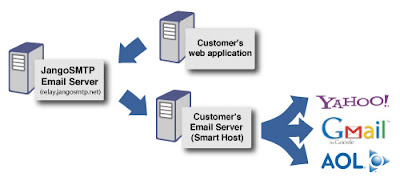
JangoSMTP will send all 100 emails to smtp.browniekitchen.com and smtp2.browniekitchen.com, and these servers will then deliver the email messages to Yahoo's, GMail's and AOL's servers.
In essence, when using Smart Hosts with the SMTP relay, your application would relay the emails to relay.jangosmtp.net, which would then process the email, add open tracking, click tracking, and a DomainKeys signature, and then relay the email back to your own server for delivery to the recipient.
So the Smart Host is just a middleman server between JangoSMTP and the final recipient?
Yes. It allows the emails to originate from your IP and your domain name and your organization rather than ours. It allows you complete control over your own email deliverability, and allows you to monitor SMTP logs, traffic, blocks, and throttling on your email server. Learn more about Smart Hosts with the
Wikipedia article on Smart Hosts.
 What's the point of this feature?
This feature is meant for those customers that want to use us for everything, except email deliverability, and enjoy a significant cost savings for doing so. It's for those that like our feature set, our interface, our API, and everything else about JangoSMTP, but don't need us for actual email delivery, because their own email servers can handle that.
We spend a lot of time ensuring that our own email servers are clean, fast, of high reputation, and secure. Deliverability issues can also be difficult to research. By allowing you to have the
emails sent from your own email servers, it gives you the full power to research such issues because you now have the information necessary to do so.
Setting up this feature is not for the average JangoSMTP user. It's meant for
network administrators, sysadmins, and developers who want to take advantage of a significant cost savings by offloading email delivery onto their own network. When using a Smart Host, you must ensure that the Smart Host is configured properly to deliver high volume email. Most corporate email servers are not able to deliver high volume email because a.) Their upstream ISP does not allow the network to be used for mass email delivery and b.) The IP address of the organization's email server does not have the deliverability reputation necessary to deliver large amounts of emails to consumer email domains, like gmail.com, yahoo.com, aol.com, and live.com. This reputation can be developed over time, however, using a process called IP Warmup.
How do I configure my Smart Host to send emails from JangoSMTP?
Click the
Edit Icon next to
Settings --> Advanced --> Smart Hosts. You must ensure that your Smart Host server is able to relay emails that originate from our IP addresses. By default, all emails being routed to Smart Hosts will be sent from one of three IP addresses:
sh1.jsmtp.net - 216.75.6.141
sh2.jsmtp.net - 209.190.39.50
sh3.jsmtp.net - 66.40.10.14
This list of servers is also shown in this section
. You should enter all of the IP addresses into the "Authenticated IPs" or "Allow Relays From these IPs" settings in
your smart host's SMTP settings.
Optionally, if your Smart Host server is able to authenticate by domain name, you can allow any servers that are named *.jsmtp.net to relay through your server. That way, should the JangoSMTP IP addresses change, you won't need to change your smart host configuration.
If you don't do this, when JangoSMTP attempts to send emails to your smart host, JangoSMTP will get a "Relay access denied" or "Unable to relay email" type SMTP error, and the email will not deliver.
You can test your email server's configuration with the
Test Icon under
Settings --> Advanced --> Smart Hosts. The test feature will attempt to relay an email message through your email server from all three JangoSMTP servers. If the test passes, you're ready to send through your Smart Hosts. If the test fails, that means you haven't configured your Smart Host properly to allow SMTP relays from the three JangoSMTP IP addresses.
In the above example for the Brownie Kitchen account,
emails sent to yahoo.com will be sent by smtp2.brownikitchen.com and all other emails will be sent by
smtp.browniekitchen.com. Domain-specific rules take precedence over an ALL DOMAINS rule.
Can I use a third party server as my JangoSMTP Smart Host?
Yes, you can! There are many third-party SMTP services, any of which you can use as a smart host with JangoSMTP, provided that third-party SMTP service allows relay authentication by IP address. Remember that wherever your smart host is located, it must allow relays from our three IP addresses:
sh1.jsmtp.net - 216.75.6.141
sh2.jsmtp.net - 209.190.39.50
sh3.jsmtp.net - 66.40.10.14
Unfortunately we do not support SMTP-AUTH authentication.
This may lead to the question: Can a JangoSMTP user use JangoSMTP as the Smart Host? Your account is prevented from doing this, as this would create an infinite email loop.
Won't SPF/SenderID fail if I set a smart host?
Not if you set up properly. You must carefully take into account SPF/SenderID settings when using a smart host. You need to ensure the following:
- Ensure that the MAIL-FROM setting is correct.
a. Transactional email via API: Set UseSystemMailFrom in the Options parameter to False.
b. Transactional email via SMTP Relay: Uncheck the Use system MAIL-FROM address box under Settings --> Tracking --> General.


- Ensure that the SPF record for the domain in your From Address, which is a DNS TXT record, includes the IP address of your Smart Host.
For example, if you're sending emails from orders@browniekitchen.com, and your Smart Host is smtp.browniekitchen.com, and the IP address for smtp.browniekitchen.com is 10.10.10.5, then the SPF record for browniekitchen.com might look like this:
"v=spf1 include:jangomail.com ip4:10.10.10.5 a mx -all"
While the include:jangomail.com directive is not necessary, it can be left in place in case Smart Hosts are ever removed from your account in the future.
How do I set up Feedback Loops (FBLs)?
Most feedback loops (FBLs) work based on the sending IP address. Yahoo! is the exception, as it's based on the DomainKeys signature. Since by using Smart Hosts, the sending IP address will be that of your own email server, you must set up FBLs for your own IP. For ease of management, you may have the abuse reports sent to
fbl_sh@us.jangomail.com, a special email address we've set up to process Abuse Reports for customers using Smart Hosts.
How do I my ensure DomainKeys/DKIM settings work?
DomainKeys/DKIM headers are preserved in transit, so regardless of how many email servers your messages bounce between before arriving to their final recipient, your DomainKeys/DKIM headers will remain intact.
What are the disadvantages of using Smart Hosts?
When you have your emails sent through your own smart hosts, you are in charge of all email delivery issues. Our support staff will only be able to provide very limited help for email delivery issues since the email is being sent from your server, not ours. Therefore, it's only recommended you use this feature if you're able to monitor your delivery as well.
All tracking functionality, like open tracking, and click tracking, and web site activity tracking, will still work, and you'll still see all of that data in Reporting.
Will I lose any functionality if I send through a Smart Host?
No. Every single JangoSMTP feature will still work. The only difference when you setup Smart Hosts is that the emails are sent from your servers, not ours.
What if I try sending through my own servers, but I find the email deliverability too difficult to manage?
No problem, you're welcome to come back to the "regular" JangoSMTP service and have the emails sent through our high deliverability servers. All you have to do is delete the Smart Hosts entries from your
Settings --> Advanced --> Smart Hosts page.
What are the cost savings for sending through my own servers?
You may send up to
100,000 emails/month for free through JangoSMTP if using Smart Hosts.
Exactly what do I need to do to set up Smart Hosts for my account?
- Configure your Smart Host. Modify your email server's settings to allow SMTP relays from the three above-mentioned IP addresses.
- Add the Smart Hosts into your JangoSMTP account. Go to Settings -> Advanced --> Smart Hosts, and add the Smart Host. Then Test it to ensure that your email server is setup correctly.
- Set up SPF/SenderID. Go to Settings --> Tracking --> General and uncheck the Use system Mail-FROM address checkbox. Additionally, ensure that the IP address of your Smart Host is listed in the SPF record of your organization's domain.
- Set up Feedback Loops, so that complaint reporting is reflected in your account. Set up feedback loops with AOL, Comcast, Juno/NetZero, Yahoo! and anyone else that allows them, and have the Abuse Reports sent to fbl_sh@us.jangomail.com so that our system can process them.


 When the time comes, I plan to monitor what my children do with their cars using GPS tracking. There are several in-vehicle monitoring devices and programs like OpenGTS that will send an email to my husband and I when one of our kids exceeds the speed limit or travels outside of their approved radius or “geofence.” These devices can also record and send a kid's exact routes, stop times, speeds, and more. A few of the tracking systems can even send us a warning message if our teen driver's seatbelt is left unbuckled.
 There is also huge potential for the commercial use of similar devices and programs. Trucking companies and businesses in service-related industries can keep track of their trucks and vans, keep their drivers safe, and lower their insurance premiums by installing devices into each of their fleet vehicles. Whether you plan to track your vehicles at home or keep an eye on your own fleet, JangoSMTP can provide the relay server you need to make the whole thing work and keep everyone safe.


