Thursday, April 4, 2013

Upgrade your emails with vBulletin

The first step to maximizing the effectiveness of popular forum software, like vBulletin, is to enhance them through configuration with JangoSMTP or JangoMail.

vBulletin is a helpful forum software package that facilitates online community discussions related to your business. The system also sends a variety of transactional emails: new registration confirmations, topic reply notifications, PM notifications, and more.

So how can JangoSMTP improve your vBulletin account?
JangoSMTP offers more email reporting features than what you will find in vBulletin's package. JangoSMTP's email delivery and tracking capabilities ensure that your signup confirmation emails will go through the first time and be open and click tracked. It's a common issue with forum software - if a user doesn't receive their confirmation email, they can't use your forum. As a result, users need to contact your forum administrator to activate their accounts manually, which is not ideal, especially if you have a large forum.

Here's how to set it up:
1. Log into your vBulletin Admin CP
2. Go to Settings - Options - Email Options - Edit Settings
3. Scroll down to choose the following settings:

  • SMTP Email: Yes
  • SMTP Host: relay.jangosmtp.net
  • SMTP Port: either 25, 2525, 587 or 465 for SSL/TLS connections
  • SMTP Username: use your JangoSMTP username
  • SMTP Password: user your JangoSMTP password
  • SMTP Secure Connection (can be enabled if port 465 is used)

vBulletin can also be used to send mass email newsletters to your users, to keep them engaged. To do so, go to Users - Send Email to Users within your Admin CP and configure it with a JangoMail account.

As always, if you have any questions or need extra help configuring your vBulletin account with JangoSMTP, contact us at any time.

Wednesday, April 3, 2013

Quick Account Usage Info at Your Fingertips

We added a quick go-to menu, accessible at the top of every JangoSMTP page that shares some of your account's vital statistics at a glance.

(displayed on mouse-over "13 days until,..")

When you are logged into your paid account, you will now see a link at the top of every page identifying how many days are left in your usage cycle. Mousing over the link produces a dialogue with stats including:

  • # of Messages used
  • # of Messages remaining
  • Volume of Data used
  • Volume of Data remaining
  • Messages and Data Available in the next cycle

Monday, January 28, 2013

2 Cool New Features You Should Know About

How are things? We've just a couple announcements for you this week–2 new features we think will help you make the most of your JangoSMTP emailin' experience.

Clear Your Bounce Addresses

Remember, bounces occur when you try to send an email to an email address and for whatever reason, it doesn't go through. This could be for a number of reasons including:

  • The recipient email server could be permanently down
  • The recipient email server could be temporarily down
  • The recipient email server could be in a transitional state
  • The recipient's email address could be temporarily locked (mailbox full, temporarily suspended etc.)
  • The recipients email address could be unavailable (user's email doesn't exist, permanently suspended, etc.)
Many of the potential reasons for a bounce are temporary. As a practice at JangoSMTP, we stop sending email to an addresses after it has experienced a bounce three times. This is sufficient for most users. But if you want to maximize your potential reach, it makes sense for many users to clear some or all of their bounced addresses periodically to reattempt sending unless they've determined the email address to be permanently closed.

To clear your bounce addresses, go to "Settings-->Authoring-->Clear Bounce Addresses" make your selections and click "Save'.


Choose a time frame you wish to clear bounces from and click "Save" to clear your bounce addresses and reattempt sending to those addresses in future emails.


Download Customer Receipt PDFs

Here's a feature we released for JangoMail a while back but didn't announce to the JangoSMTP crowd. Until now.


For every invoice you receive, enjoy the option to download a PDF version for your records. Who doesn't like to fire up the old Adobe Acrobat Reader every now and again? It prints out rather nicely too–

That's It

Short and simple this time. But don't worry, there will be plenty more for you on the way. We're always working to innovate. We've been doing a lot in the back end in recent weeks. We're re-writing code, optimizing and ensuring redundancies are in place to give you the fastest, most reliable service possible. We wish you the best and please contact us should you need anything. 

Tuesday, November 6, 2012

It's Been A While

How are things?

We wanted to update you on some of the new features we've been working on in recent weeks.

Most of the new features and updates we've made lately have been for our Broadcast Marketing Product, JangoMail. If you're interested in a product with all of the features of JangoSMTP as well as additional features tailored specifically for list management and broadcast email marketing, check out our JangoMail blog to learn about some of the latest features we've developed. Consider a Free Trial or a subscription and give it a test run.

Inline with our commitment to bringing you the best transactional email experience, we have some cool new features to help you make the most of JangoSMTP.

Multiple CC's and BCC's

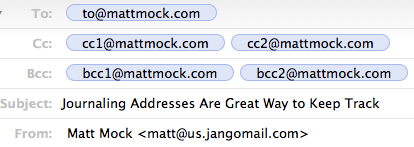
We made some modifications to how bcc and cc's work. Plain and simple, we added the capability to specify multiple cc's and bcc's in your email via the SendTransactionalEmail API Method or by sending them through the relay-- and we made sure that they're displayed exactly how you want them displayed for every end-recipient.

To specify multiple cc and bcc addresses with the SendTransactionalEmail API method:
See the method's help page for a full reference. Specify cc's and bcc's via the "option" string parameter. Use a comma between each option (cc and bcc) and a semicolon between each email address, as in this example:

cc=cc1@mattmock.com;cc2@mattmock,bcc=bcc1@mattmock.com;bcc2@mattmock.com

To specify multiple cc and bcc addresses via the transactional relay:
Compose your email exactly how you would normally with your email client, via your website, or your application, specifying the cc/bcc addresses as you normally would. Bounce your email off the relay server at relay.jangosmtp.net at the standard SMTP port and use either SMTP Auth with your JangoSMTP username and password, IP authentication by specifying your private, external IP address in your JangoSMTP account settings, or use an authorized "From Address" that you specified in your account settings. And leave the rest up to us.


Journaling Addresses

One feature many customers asked us for was "Journaling Addresses". These are email addresses you can add to your account that receive a receipt (copy) of every outgoing email that is sent through the relay or with the API. With journaling addresses, keeping a re-traceable history of all outgoing communications for internal audit purposes couldn't be more simple.

To add Journaling Addresses to your account:
Go to Settings --> Authoring --> Journaling Addresses
And add as many journaling addresses as you'd like.

Journaling Addresses receive a copy of every email that is transmitted through the relay with all headers intact in the way they were originally crafted by you before initiating the send. For example, if you sent an email to a recipient with 4 cc's and 4 bcc's, you will see all of these recipients under the proper heading (to/cc/bcc) in the email sent to the journaling address, so you can have a real, traceable audit of all emails that were sent.


Sync Unsubscribes to Salesforce

We gave you the ability to connect to your Salesforce account and sync your unsubscribed list to Salesforce, so you can be sure you have most relevant data on your users that have unsubscribed from your transactional emails.

This is a feature that has been available for JangoMail customers for a few months now and it was specifically requested by a JangoSMTP customer-- so we thought, why not? To connect to your Salesforce account and sync your unsubscribed list:

Go to Settings --> Advanced --> Link Salesforce.com Accounts

And add your Salesforce Credentials on the dialog that comes up. There's a little bit of setup you need to do on Salesforce first but after that you should be good to go. If you use Salesforce, this new feature can save you a bunch of manual labor in the short term and in the long run, as syncing occurs on a daily basis.


Connect and Sign-In with Facebook

Do you use Facebook? Who doesn't? JangoMail has many new features that involve Facebook, but we thought we'd open the gates of possibility and give you the option to connect with Facebook on JangoSMTP as well. First and foremost, you'll be able to sign into your JangoSMTP account with a single click of the "Sign-In with Facebook" button on the login page. No need to remember your JangoSMTP credentials, unless that's your thing.

To connect with Facebook:
Go to Settings --> Advanced --> Connect with Facebook


And click the button to connect with Facebook. Once connected, you'll be able to Login to JangoSMTP with Facebook from the login page. New users can also sign-up for a Free JangoSMTP account with Facebook as well. Future integrations we make with Facebook will be right at your fingertips. What other features would you like to see us develop with Facebook?


Until Next Time

It has been great catching up with you. But we have to get back to doing what we do best-- delivering emails. We look forward to the next run-in where we'll have more exciting news for you. Stay tuned, happy sending, and drop us an email anytime. We'd love to hear from you.

Tuesday, October 16, 2012

Trouble sending email through your ISP? JangoSMTP to the rescue!

A customer of ours recently purchased a new laptop and wanted to set up her email using Windows Live Mail 2011.  She already had a Shaw webmail account and wanted to set it up inside of Windows Live Mail.  Using the instructions provided by her webmail account, she was unable to get it working - “I could receive but not send email...kept getting error codes...and I’m not bad at this stuff!”

After two days of trying to get this working, she found JangoSMTP while doing a search, and decided to try our services.  After setting up a free account with us, she said “(I) reconfigured my outgoing server settings, and have had no problems”.  While port 25 didn’t work for her (this port is blocked by many internet providers), she used another port that we provide, port 587 and was able to immediately start sending emails.

“This is awesome, you guys are the magic answer!”

Using your ISP’s email server to send email can sometimes be problematic, due to restrictions put in place to help prevent spammers from relaying email through their email servers.  These restrictions can sometimes place legitimate users in a difficult position of not being able to get their outgoing email working.  This is where JangoSMTP can help!  Using JangoSMTP, you can set up your email client to relay messages through our servers, but replies will still come back to your own address.

If you’re in a similar situation and are looking for an answer to your sending problems, try a Free JangoSMTP account.  Have questions?  Let us know - we’re standing by to help!

Wednesday, September 5, 2012

JangoSMTP: Because Good Barbecue is Too Important to Leave to Chance

In the exciting world of email, there's a little niche that few think about. Remote monitoring emails are something many never think about. For many of JangoSMTP's customers, these emails are vital to their businesses. JangoSMTP is used to send thousands of monitoring emails for security systems, networking devices, and much more.

Many radio stations have broadcast towers in remote locations, while their offices are closer to town. FCC regulations require regular monitoring and logging of output power levels. In the old days of a decade ago an employee, or an expensive radio link would be used to monitor and log at the remote location. Modern equipment, though, allows the radio station to use JangoSMTP's inexpensive relays to replace expensive equipment and salary costs.

Many security cameras offer email monitoring. Using JangoSMTP, your security system can send you a photo anytime it detects movement. You can then view the email, and see the photo from your PC or even your phone, anywhere in the world.

But wait, you don't run a radio station.  You don't have a security system. You do, though, have a beautiful smoker that you use to make delicious barbecue. Personally, I'm imagining that it's Eastern North Carolina pork barbecue, but you may be a brisket fan. You can use JangoSMTP and the CyberQ II to monitor not one, but two barbecue pits at once. It can email you updates while it continues the low, slow, smoky heat that good barbecue requires.

If you're looking for an SMTP server for your remote monitoring tool, try a Free JangoSMTP Trial Account. You can send up to 200 emails per month with the trial. Need more?  Let us know.

We're JangoSMTP.  We don't make your barbecue, but we do help them make it taste better.

Wednesday, July 25, 2012

Our Latest Video! The Email Hookup

Don't let your email be a wallflower, rejected and alone. Hook him up with JangoSMTP.


How did you like our latest video?