Wednesday, October 27, 2010

New Feature: Our platform, your servers

Going Freemium: Our platform, your servers

You can now use JangoSMTP's interface, features, and functionality, with your own email servers. Specifically, you can now designate one or more "Smart Hosts" for your JangoSMTP account and have all transactional email sent by the Smart Hosts instead of JangoSMTP's own email servers. A smart host is an email server on your own network or one that you control. The best part is you can send 100,000 emails/month for free when using your own email servers to deliver your email.

How can this possibly work?

By setting your account to use a Smart Host, you are telling JangoSMTP to route email messages through the Smart Host rather than directly to the recipients. The Smart Host will actually deliver each email message to the recipient.

For example, let's say you manage www.browniekitchen.com. Your corporate email servers are smtp.browniekitchen.com and smtp2.browniekitchen.com, and you want your transactional email sent from your servers instead of ours. You would designate these to be the Smart Hosts for your JangoSMTP account. You then use your JangoSMTP account to send 100 email messages, to varying domains, like yahoo.com, gmail.com, and aol.com. JangoSMTP will send all 100 emails to smtp.browniekitchen.com and smtp2.browniekitchen.com, and these servers will then deliver the email messages to Yahoo's, GMail's and AOL's servers.

In essence, when using Smart Hosts with the SMTP relay, your application would relay the emails to relay.jangosmtp.net, which would then process the email, add open tracking, click tracking, and a DomainKeys signature, and then relay the email back to your own server for delivery to the recipient.

So the Smart Host is just a middleman server between JangoSMTP and the final recipient?

Yes. It allows the emails to originate from your IP and your domain name and your organization rather than ours. It allows you complete control over your own email deliverability, and allows you to monitor SMTP logs, traffic, blocks, and throttling on your email server. Learn more about Smart Hosts with the Wikipedia article on Smart Hosts.

What's the point of this feature?

This feature is meant for those customers that want to use us for everything, except email deliverability, and enjoy a significant cost savings for doing so. It's for those that like our feature set, our interface, our API, and everything else about JangoSMTP, but don't need us for actual email delivery, because their own email servers can handle that.

We spend a lot of time ensuring that our own email servers are clean, fast, of high reputation, and secure. Deliverability issues can also be difficult to research. By allowing you to have the emails sent from your own email servers, it gives you the full power to research such issues because you now have the information necessary to do so.

Setting up this feature is not for the average JangoSMTP user. It's meant for network administrators, sysadmins, and developers who want to take advantage of a significant cost savings by offloading email delivery onto their own network. When using a Smart Host, you must ensure that the Smart Host is configured properly to deliver high volume email. Most corporate email servers are not able to deliver high volume email because a.) Their upstream ISP does not allow the network to be used for mass email delivery and b.) The IP address of the organization's email server does not have the deliverability reputation necessary to deliver large amounts of emails to consumer email domains, like gmail.com, yahoo.com, aol.com, and live.com. This reputation can be developed over time, however, using a process called IP Warmup.

How do I configure my Smart Host to send emails from JangoSMTP?


Click the Edit Icon next to Settings --> Advanced --> Smart Hosts. You must ensure that your Smart Host server is able to relay emails that originate from our IP addresses. By default, all emails being routed to Smart Hosts will be sent from one of three IP addresses:

sh1.jsmtp.net - 216.75.6.141
sh2.jsmtp.net - 209.190.39.50
sh3.jsmtp.net - 66.40.10.14

This list of servers is also shown in this section. You should enter all of the IP addresses into the "Authenticated IPs" or "Allow Relays From these IPs" settings in your smart host's SMTP settings.

Optionally, if your Smart Host server is able to authenticate by domain name, you can allow any servers that are named *.jsmtp.net to relay through your server. That way, should the JangoSMTP IP addresses change, you won't need to change your smart host configuration.

If you don't do this, when JangoSMTP attempts to send emails to your smart host, JangoSMTP will get a "Relay access denied" or "Unable to relay email" type SMTP error, and the email will not deliver.

You can test your email server's configuration with the Test Icon under Settings --> Advanced --> Smart Hosts. The test feature will attempt to relay an email message through your email server from all three JangoSMTP servers. If the test passes, you're ready to send through your Smart Hosts. If the test fails, that means you haven't configured your Smart Host properly to allow SMTP relays from the three JangoSMTP IP addresses.


In the above example for the Brownie Kitchen account, emails sent to yahoo.com will be sent by smtp2.brownikitchen.com and all other emails will be sent by smtp.browniekitchen.com. Domain-specific rules take precedence over an ALL DOMAINS rule.

Can I use a third party server as my JangoSMTP Smart Host?

Yes, you can! There are many third-party SMTP services, any of which you can use as a smart host with JangoSMTP, provided that third-party SMTP service allows relay authentication by IP address. Remember that wherever your smart host is located, it must allow relays from our three IP addresses:

sh1.jsmtp.net - 216.75.6.141
sh2.jsmtp.net - 209.190.39.50
sh3.jsmtp.net - 66.40.10.14

Unfortunately we do not support SMTP-AUTH authentication.

This may lead to the question: Can a JangoSMTP user use JangoSMTP as the Smart Host? Your account is prevented from doing this, as this would create an infinite email loop.

Won't SPF/SenderID fail if I set a smart host?

Not if you set up properly. You must carefully take into account SPF/SenderID settings when using a smart host. You need to ensure the following:


  1. Ensure that the MAIL-FROM setting is correct.

    a. Transactional email via API: Set UseSystemMailFrom in the Options parameter to False.
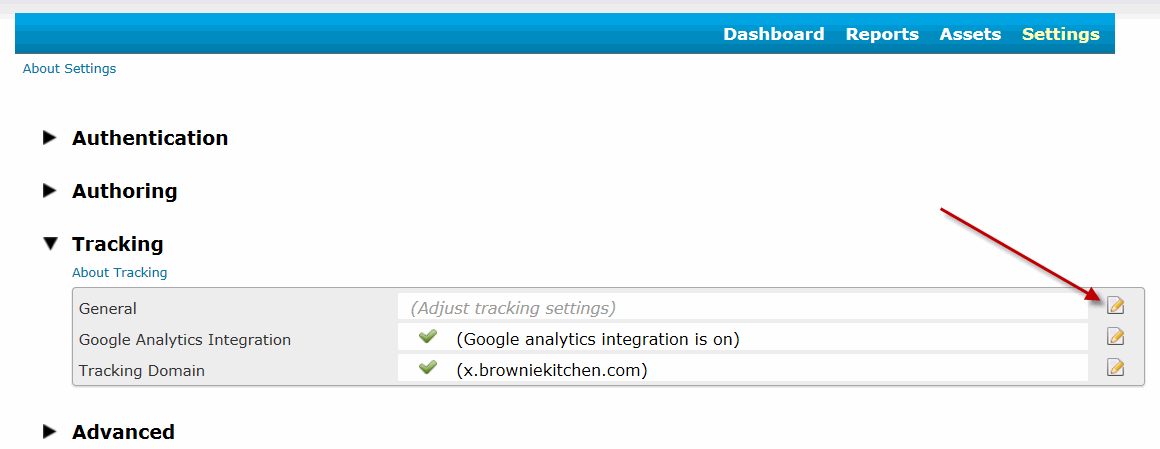
    b. Transactional email via SMTP Relay: Uncheck the Use system MAIL-FROM address box under Settings --> Tracking --> General.


  2. Ensure that the SPF record for the domain in your From Address, which is a DNS TXT record, includes the IP address of your Smart Host.

    For example, if you're sending emails from orders@browniekitchen.com, and your Smart Host is smtp.browniekitchen.com, and the IP address for smtp.browniekitchen.com is 10.10.10.5, then the SPF record for browniekitchen.com might look like this:

    "v=spf1 include:jangomail.com ip4:10.10.10.5 a mx -all"

    While the include:jangomail.com directive is not necessary, it can be left in place in case Smart Hosts are ever removed from your account in the future.
How do I set up Feedback Loops (FBLs)?

Most feedback loops (FBLs) work based on the sending IP address. Yahoo! is the exception, as it's based on the DomainKeys signature. Since by using Smart Hosts, the sending IP address will be that of your own email server, you must set up FBLs for your own IP. For ease of management, you may have the abuse reports sent to fbl_sh@us.jangomail.com, a special email address we've set up to process Abuse Reports for customers using Smart Hosts.

How do I my ensure DomainKeys/DKIM settings work?

DomainKeys/DKIM headers are preserved in transit, so regardless of how many email servers your messages bounce between before arriving to their final recipient, your DomainKeys/DKIM headers will remain intact.

What are the disadvantages of using Smart Hosts?

When you have your emails sent through your own smart hosts, you are in charge of all email delivery issues. Our support staff will only be able to provide very limited help for email delivery issues since the email is being sent from your server, not ours. Therefore, it's only recommended you use this feature if you're able to monitor your delivery as well. All tracking functionality, like open tracking, and click tracking, and web site activity tracking, will still work, and you'll still see all of that data in Reporting.

Will I lose any functionality if I send through a Smart Host?

No. Every single JangoSMTP feature will still work. The only difference when you setup Smart Hosts is that the emails are sent from your servers, not ours.

What if I try sending through my own servers, but I find the email deliverability too difficult to manage?

No problem, you're welcome to come back to the "regular" JangoSMTP service and have the emails sent through our high deliverability servers. All you have to do is delete the Smart Hosts entries from your Settings --> Advanced --> Smart Hosts page.

What are the cost savings for sending through my own servers?

You may send up to 100,000 emails/month for free through JangoSMTP if using Smart Hosts.

Exactly what do I need to do to set up Smart Hosts for my account?

  1. Configure your Smart Host. Modify your email server's settings to allow SMTP relays from the three above-mentioned IP addresses.
  2. Add the Smart Hosts into your JangoSMTP account. Go to Settings -> Advanced --> Smart Hosts, and add the Smart Host. Then Test it to ensure that your email server is setup correctly.
  3. Set up SPF/SenderID. Go to Settings --> Tracking --> General and uncheck the Use system Mail-FROM address checkbox. Additionally, ensure that the IP address of your Smart Host is listed in the SPF record of your organization's domain.
  4. Set up Feedback Loops, so that complaint reporting is reflected in your account. Set up feedback loops with AOL, Comcast, Juno/NetZero, Yahoo! and anyone else that allows them, and have the Abuse Reports sent to fbl_sh@us.jangomail.com so that our system can process them.

Monday, September 27, 2010

New SMTP relay service feature: Authenticate a Class C IP block

Our customers using the Jango SMTP relay can now add a full class C IP block to their list of authenticated IP addresses, instead of adding single IPs at a time. To add a class C block of IP addresses (255 IP addresses), contact our support team, and they can do this for you, as the feature is not yet available through our web interface.

Why would I need to allow 255 IP addresses to relay email?

Most customers will not need to do this, but we have some customers that are ISPs, web hosting companies, and cloud computing services. These organizations often need to allow larger blocks of IP addresses in order to serve their own customers.

Thursday, August 19, 2010

New method to specify Transactional Group using the SMTP server

We've introduced a new method to assign a transactional email to a Transactional Group. Along with specifying the Transactional Group in the Subject line, you can now also specify it in a custom X-Header.

If you're using the JangoSMTP server to send transactional email, you're likely familiar with the concept of Transactional Groups -- categories to which you can assign various types of transactional emails. For example you may have the following Transactional Groups set up in your account:

1. Order Confirmations
2. Renewal Reminders
3. Thank Yous

Previously you could assign an email to a particular Transactional Group by specifying the Transactional Group's name in the Subject Line surrounded by curly brackets. For example, if I sent an email with the Subject:

Subject: Thanks for your purchase {Thank Yous}

...then this email would get assigned to the Transactional Group called "Thank Yous", and the email would be sent with the curly brackets and the part in between stripped out.

Now, there's an alternate way to assign an email to a particular Transactional Group...you can specify an X-header with the Transactional Group's ID. If you're sending emails through relay.jangosmtp.net programatically, such as through .Net or PHP code, and if you have the ability to add an X-header to the email message, you can use this method. The format is as follows:

X-TransGroupID: TransactionalGroupID

For example, if the Transactional Group "Thank Yous" had an ID number of 78929, then you would add the header:

X-TransGroupID: 78929

Specifying an X-TransGroupID header overrides any Transactional Group designation in the Subject Line.

You can retrieve the ID number of a Transactional Group by going to the Transactional Reporting section of your account, where the various Transactional Groups are listed, along with their delivery statistics and their ID numbers.

Monday, June 7, 2010

Better design for API homepage

We have re-designed the homepage of the API to be cleaner, more organized, easier to use, and easier to access documentation for each individual web service method. You can see the difference between the new and the old versions below.

Each method is organized into its proper category, has a link to a test form to call the method, and a link to the detailed documentation for the method.

New API homepage design


Old homepage design

Thursday, May 27, 2010

JangoSMTP now supports SSL/TLS

JangoMail has added support for SSL connections to our relay server from your email client of choice (e.g. Outlook, Thunderbird, Mac Mail, etc.). Just as when you use an HTTPS connection to connect to a website and make a secure online purchase, you can use the same technology to setup a secure connection with JangoMail and send email through your JangoSMTP account. This ensures your JangoSMTP username and password remain secure as they are transmitted between your computer and JangoSMTP relay servers. All that's needed to enable this feature a quick settings change in your email client.

Note: These instructions assume you already have your JangoSMTP account setup in your mail client. Follow these directions if you don't already have your mail client setup to send through your JangoSMTP account.

Outlook:

  1. Click on Tools -> Account Settings
  2. Highlight your JangoSMTP account and click Change...
  3. Click More Settings...
  4. Go to the Advanced tab
  5. Choose SSL in the Use the following type of encrypted connection: dropdown
  6. Change the Outgoing server (SMTP) port number to 465


Thunderbird:

  1. Go to Tools -> Account Settings
  2. Click Outgoing Server (SMTP)
  3. Choose the entry for relay.jangosmtp.net and click Edit
  4. Check the Use Secure Connection box and choose SSL/TLS from the Connection security dropdown


Mac Mail:

  1. Go to Mail -> Preferences
  2. Click on the Accounts tab
  3. Choose your JangoSMTP account at the left
  4. Click on Edit Server List... from the Outgoing Mail Server (SMTP) dropdown
  5. Select the entry for relay.jangosmtp.net and click on the Advanced tab
  6. Put a check next to Use Secure Sockets Layer (SSL)
  7. Select Use custom port and enter 465 as the value


Most modern email clients support SSL/TLS. If your email client is not listed above, open up your account settings configuration page and find the outgoing email server connection settings. The option you want to enable will be called SSL/TLS (not STARTTLS). Also look out for a default connection port. Generally this port number will be 25 or 2525 before you setup SSL/TLS, but it should be changed to 465 after the feature is setup. When in doubt, submit a support ticket and a member of the JangoSMTP support team will be able to assist you in choosing the right options.

Wednesday, April 21, 2010

Three Bug Fixes to SMTP Service

We've deployed three bug fixes to JangoMail's SMTP Server, relay.jangosmtp.net. These three bugs were detected by customers relaying emails with eccentric attributes through the SMTP server.

1. Emails containing MIME boundaries with parentheses will now be properly handled.

Previously, emails with parentheses in the MIME boundaries, such as a boundary like:

Content-Type: multipart/mixed; boundary="nqp=nb64=()BDXjw0yWx"

would cause the JangoSMTP parser to throw an error. This is now fixed.

2. Emails containing unrecognized Content-Transfer-Encoding types will now default to "7bit".

Previously, if an email message contained an unrecognized or misspelled encoding type, like:

Content-Transfer-Encoding: 7 bit

would cause the JangoSMTP parser to throw an error. This is now fixed.

3. Emails containing foreign characters encoded as ISO-8859-1 will be properly handled.

Previously, an email containing certain foreign characters would have those characters replaced with ? marks or garbled when passed through the relay. For example, a Subject like:

Subject: Confirmation d'Inscription à la Liste de Diffusion - Liste TEST ML

would not have its foreign characters preserved. This is now fixed.

Saturday, March 27, 2010

SMTP Relay Server Enhancements

We've deployed a couple of enhancements and bug fixes to the SMTP service.

  1. MIME encoded Subject lines containing a Transactional Group are now handled properly.

    According to the SMTP MIME specification, certain email headers can be MIME encoded. It's called the encoded-word syntax. For example, the Subject of an email might actually look like:

    Subject: =?utf-8?Q?Savings_For_Today{Daily_Alert}?=

    This represents a subject that is character-encoded as UTF-8 and content-transfer-encoded as quoted-printable. This Subject, properly rendered by an email client would look like:

    Subject: Savings for Today{Daily Alert}
    For the purposes of the JangoMail SMTP Server, the subject can contain the Transactional Group that the message should be assigned to in curly brackets. So if this message was relayed through relay.jangosmtp.net, then the actual Subject would be "Savings for Today", and this message would be assigned to the Transactional Group "Daily Alert" in the user's account. Previously, our system was not decoding the Subject properly in order to determine the correct Transactional Group name to which to assign the email, but that has now been corrected in today's release.
  2. If the Sender header is specified in the original email, that header is now preserved.

    The Sender header, similar to the From header of an email, can be used to denote additional information about where the email originated. Most email messages do not contain a Sender header, but in some cases, a Sender header is inserted by an email system if the user is using a From Address not local to that particular email system. For example, GMail users who send "from" an address other than their gmail.com address will have a Sender header inserted into the email where the Sender header equals the gmail.com address and the From address equals the user's chosen From Address.

    On the receiving side, some email clients will show the Sender header as a phrase to the email recipient, saying "From [From Address] On Behalf Of [Sender Address]"

    Previously, if an email was relayed through the relay server that included a Sender header, the Sender header would be discarded by our system and not included in the final email message. Now, the system is preserving the Sender header.